











How to import your own music and use custom songs in Dead as Disco
Dead as Disco's early access offers you a steady list of jams to enjoy, but you can fine-tune the experience with the help of custom songs. This allows you to use your own set of tracks after adding them to the official in-game list. While the process might feel confusing at first, this guide will help you complete all the steps without errors.Table of contentsHow to add custom songs in Dead as DiscoHow to calibrate custom music in Dead as DiscoHow to add custom songs in Dead as Disco The first task is to complete Dead as Disco's tutorial since you'll need the Infinite Disco mode. Once available, you can select the mode from the main menu screen. Then, select the Free Play option. In Free Play, you'll find a tab on top of your screen titled "Add My Music". Click on it to upload your own custom track. I have only tried files with the .mp3 extension at the end. However, the game accepts all standard formats like .m4a, .wma, .aac, and .wave, among others. Screenshot by Destructoid Once added, you can now play the song in Free Play mode.How to calibrate custom music in Dead as Disco Screenshot by Destructoid While adding your own music is pretty easy, chances are that it might not work as intended. This usually means that the song you added is out of sync, which largely has to do with its tempo, aka BPM. BPM decides how you and your enemies both react to the tunes of the track, so being calibrated is a must. If your track is not calibrated, here's how you can change that. For starters, you'll need to know the BPM of your song. You can either Google it or use a third-party website. Image via Brain Jar Games You can now use the Advanced Editor available in the game to calibrate the music. Use the Tempo option to add your track's BPM. Adjust the waveforms carefully, and this will calibrate the track and get it ready to be used in the Infinite Disco mode. Unless there's a lag at the start of the track (when it starts), there won't be much need to manually adjust it using the editor. The post How to import your own music and use custom songs in Dead as Disco appeared first on Destructoid.
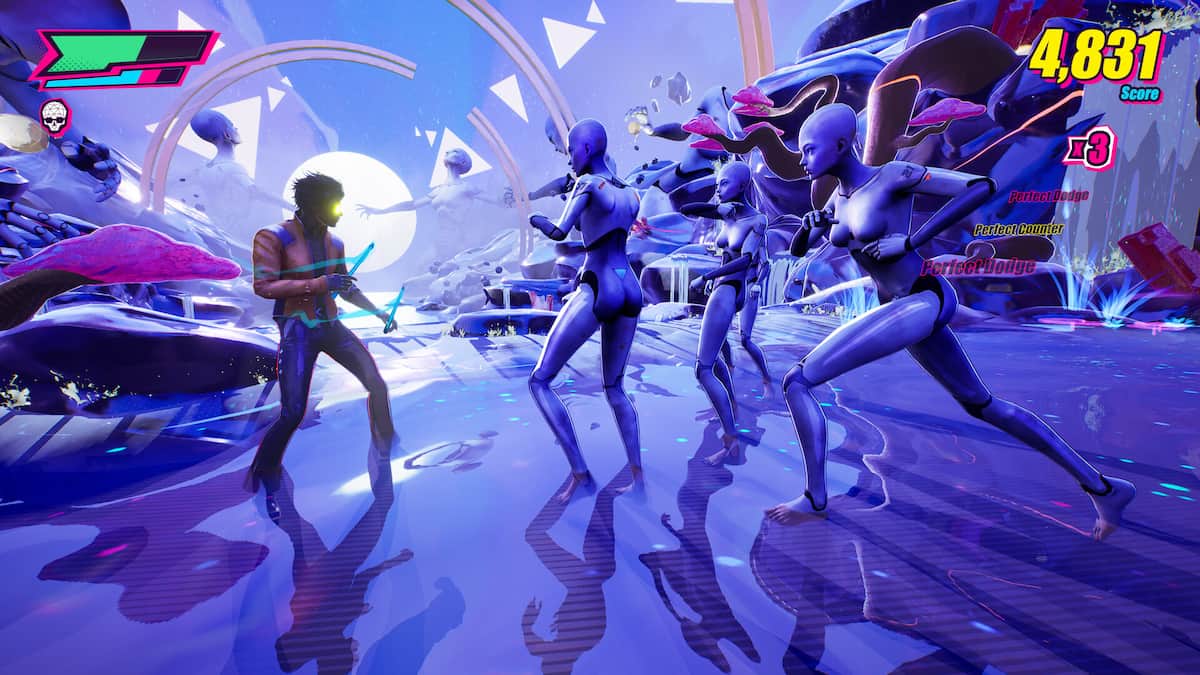
Dead as Disco's early access offers you a steady list of jams to enjoy, but you can fine-tune the experience with the help of custom songs. This allows you to use your own set of tracks after adding them to the official in-game list.
While the process might feel confusing at first, this guide will help you complete all the steps without errors.
Table of contents
How to add custom songs in Dead as Disco
The first task is to complete Dead as Disco's tutorial since you'll need the Infinite Disco mode. Once available, you can select the mode from the main menu screen. Then, select the Free Play option.In Free Play, you'll find a tab on top of your screen titled "Add My Music". Click on it to upload your own custom track. I have only tried files with the .mp3 extension at the end. However, the game accepts all standard formats like .m4a, .wma, .aac, and .wave, among others.
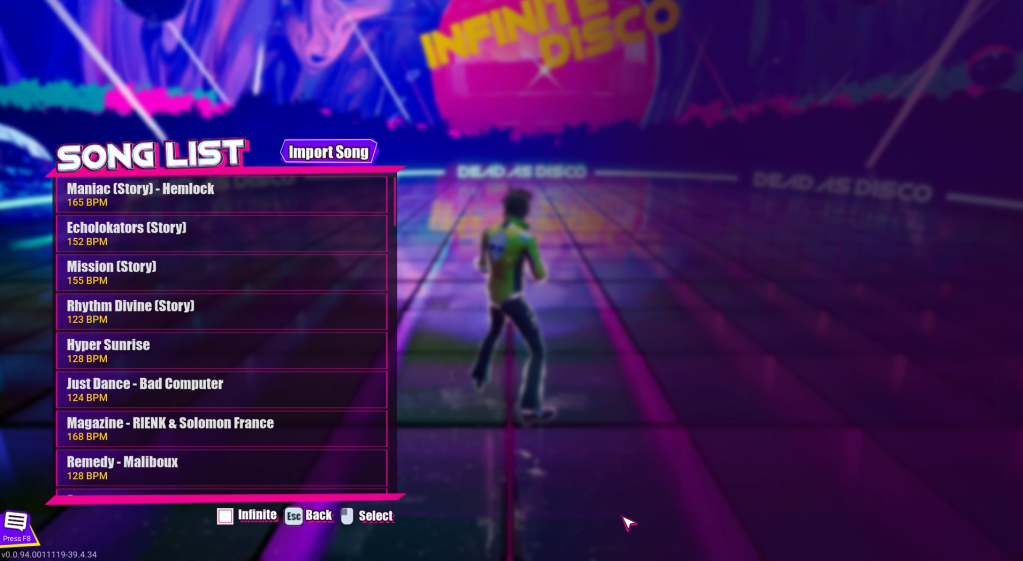 Screenshot by Destructoid Once added, you can now play the song in Free Play mode.
How to calibrate custom music in Dead as Disco
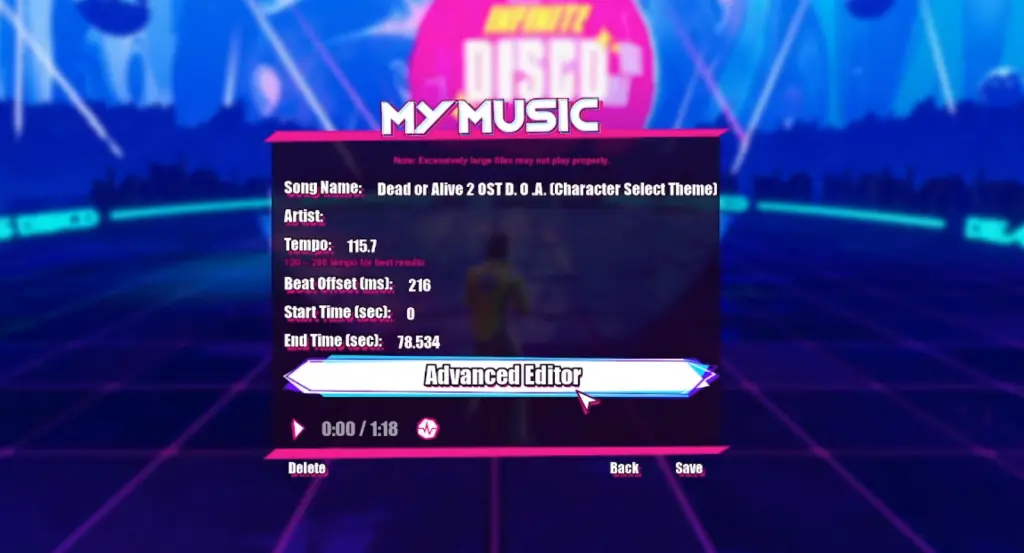 Screenshot by Destructoid While adding your own music is pretty easy, chances are that it might not work as intended. This usually means that the song you added is out of sync, which largely has to do with its tempo, aka BPM. BPM decides how you and your enemies both react to the tunes of the track, so being calibrated is a must.
If your track is not calibrated, here's how you can change that. For starters, you'll need to know the BPM of your song. You can either Google it or use a third-party website.
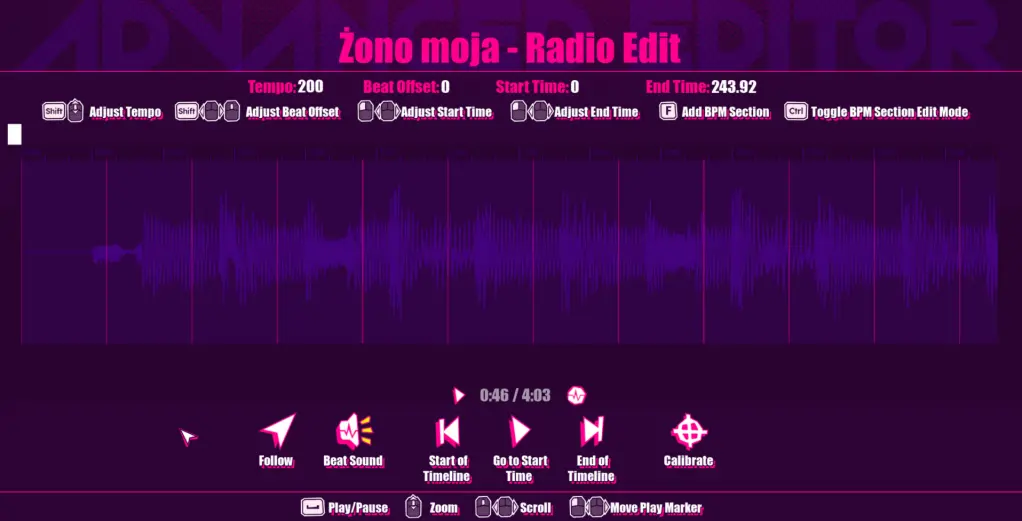 Image via Brain Jar Games You can now use the Advanced Editor available in the game to calibrate the music. Use the Tempo option to add your track's BPM. Adjust the waveforms carefully, and this will calibrate the track and get it ready to be used in the Infinite Disco mode. Unless there's a lag at the start of the track (when it starts), there won't be much need to manually adjust it using the editor.
 The post How to import your own music and use custom songs in Dead as Disco appeared first on Destructoid.

Jat AI
Stay informed with the latest in artificial intelligence. Jat AI News Portal is your go-to source for AI trends, breakthroughs, and industry analysis. Connect with the community of technologists and business professionals shaping the future.