













Build a meeting prep and follow-up assistant with Amazon Quick and Cisco Webex MCP servers
This post shows how to build a custom meeting prep and follow-up assistant using Amazon Quick and Cisco Webex MCP servers. From a single prompt, the agent finds an upcoming Webex meeting, reviews prior meeting summaries and transcripts, and pulls related Vidcast highlights and transcript context. It then searches Webex message threads for unresolved follow-ups and creates a concise prep brief. After the meeting, the same assistant can summarize the discussion and identify action items. It can also find related Vidcast updates and draft a follow-up message for the right Webex space.
Amazon Quick and Cisco Webex MCP servers can turn meeting prep and follow-up into a single conversational workflow. Instead of switching between Webex meetings, Vidcast videos, transcripts, recordings, and message spaces, users ask one assistant to gather the context they need.
This post shows how to build a custom meeting prep and follow-up assistant using Amazon Quick and Cisco Webex MCP servers. From a single prompt, the agent finds an upcoming Webex meeting, reviews prior meeting summaries and transcripts, and pulls related Vidcast highlights and transcript context. It then searches Webex message threads for unresolved follow-ups and creates a concise prep brief. After the meeting, the same assistant can summarize the discussion and identify action items. It can also find related Vidcast updates and draft a follow-up message for the right Webex space.
For project managers, team leads, and engineering teams, the business outcome is straightforward. Teams spend less time searching through meetings, recordings, transcripts, videos, and message threads. They also spend less time switching across collaboration tools and get more consistent continuity from one recurring meeting to the next. Users can stay in Amazon Quick as the single conversational workspace while the chat agent retrieves Webex context through Cisco MCP servers. When needed, the chat agent can also bring in context from enterprise data sources such as Amazon Simple Storage Service (Amazon S3), Google Drive, Microsoft SharePoint, Atlassian Confluence, or internal web content. The same chat agent can also use over 100 pre-built action connectors to perform actions in third-party systems such as Slack, Microsoft Outlook, Atlassian Jira, ServiceNow, and Salesforce.
Solution overview
Amazon Quick chat agents help users explore information, analyze data, and take actions through open-ended conversations supported by connected tools. With MCP integration, Amazon Quick connects to remote Model Context Protocol (MCP) servers. It registers the tools exposed by those servers as actions that the assistant can invoke during a conversation.
This solution uses three Cisco Webex MCP servers:
| Cisco Webex MCP server | Role in this solution |
| Webex Meetings MCP | Find upcoming and previous meetings, retrieve meeting status, artificial intelligence (AI)-generated meeting summaries, recordings, and transcripts. |
| Vidcast MCP | Search Vidcast videos, retrieve AI-generated highlights and transcripts, and recommend related or trending videos. |
| Webex Messaging MCP | Search spaces, retrieve messages and threads, and optionally create a follow-up message or threaded reply. |
Figure 1 shows the end-to-end workflow from prompt to meeting prep brief and follow-up draft.
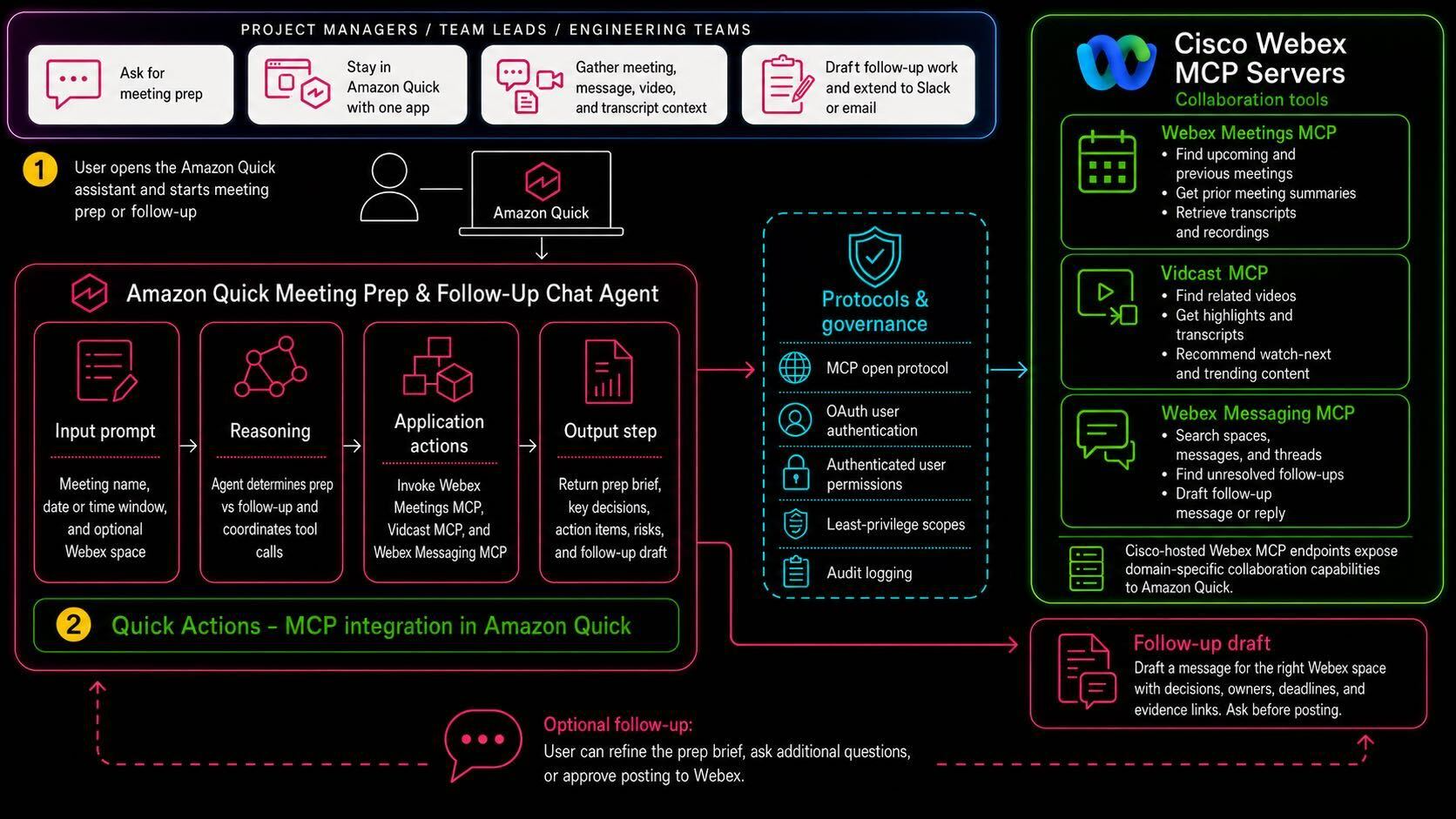
Figure 1: Meeting prep and follow-up workflow using Amazon Quick and Cisco Webex Meetings, Vidcast, and Messaging MCP servers.
Use cases
The following use cases show how the same agent supports both sides of a recurring meeting workflow.
Use case 1: Full meeting prep flow
The first use case shows orchestration across Webex Meetings, Vidcast, and Webex Messaging. The user asks for one prep brief. The agent resolves the upcoming meeting, reviews prior meeting artifacts, retrieves related Vidcast context, and checks Webex conversations for open follow-ups. It then synthesizes the findings into a brief the user can review before joining the meeting.
The following prompt starts the workflow:
To handle this request, the Quick Agent starts with Webex Meetings MCP and runs webex-list-meetings to locate the upcoming sync. It then retrieves prior context with webex-get-meeting-summary, webex-list-transcripts, and webex-list-recordings.
Next, it searches Vidcast with vidcast-search-videos and vidcast-list-shared-with-me. It uses vidcast-get-video-highlights and vidcast-get-video-transcript to extract relevant context, and can add recommended videos with vidcast-recommend-watch-next and vidcast-recommend-trending-videos.
Finally, Webex Messaging MCP helps the Quick Agent find the project space, search messages, retrieve threads, and identify unresolved follow-ups with webex-search-spaces, webex-search-messages, and webex-get-thread. Amazon Quick assembles the final prep brief from the tool outputs.
Use case 2: After-meeting follow-up query
The second use case continues the workflow after the meeting. The assistant turns the meeting summary, transcript context, and related Vidcast updates into a follow-up draft for the Webex space.
After the user sends the prompt, the agent uses Webex Meetings MCP to locate the meeting that just ended and retrieve the AI-generated summary. If the summary is incomplete, it uses transcripts for grounding.
It then searches Vidcast for related updates and highlights, finds the relevant (for example, Project Phoenix) Webex space through Webex Messaging MCP, and drafts a follow-up message. The agent should ask before posting unless the user explicitly requests posting.
Prerequisites
Before you start, make sure the following prerequisites are in place.
- Amazon Quick account. You need a subscription and permissions to create integrations and custom chat agents. Admin access is recommended for the initial setup. See Quick pricing and subscription details.
- Webex organization. Your organization must have Webex Meetings, Webex Messaging, and Vidcast available to the users who will run the assistant. If you need to set up or validate Webex access first, use the Cisco Agentic Apps overview and Provisioning on Control Hub guidance before configuring the Amazon Quick integration.
- Cisco Webex MCP servers enabled. Ask your Webex organization admin to enable the Webex Meetings MCP Server, Webex Messaging MCP Server, and Vidcast MCP Server in Webex Control Hub. See the Cisco Webex MCP server documentation for further details.
- Webex OAuth credentials. Create a Webex OAuth 2.0 integration with the scopes required by the Cisco MCP tools you plan to enable.
- Accessible Webex content. The signed-in Webex user must have access to the meetings, meeting summaries, transcripts, recordings, Vidcasts, spaces, and messages that the agent should retrieve.
Implementation
The following implementation steps configure the MCP connections, enable the specific tools used by the assistant, and create a custom chat agent in Amazon Quick.
Step 1: Confirm Cisco Webex MCP access
Cisco provides hosted Webex MCP server endpoints. You do not host these servers yourself. Before configuring Amazon Quick, confirm that the relevant MCP servers are enabled in Webex Control Hub. Also confirm that the user who authenticates from Amazon Quick can access the underlying Webex content.
The following table lists the hosted MCP server endpoints used in this solution.
| MCP server | Server URL |
| Webex Meetings MCP | https://mcp.webexapis.com/mcp/webex-meeting |
| Webex Messaging MCP | https://mcp.webexapis.com/mcp/webex-messaging |
| Vidcast MCP | https://mcp.webexapis.com/mcp/vidcast |
Note: In Webex Control Hub, your organization admin must go to Apps > Agentic Apps. They select each MCP server, Webex Messaging, Webex Meetings, and Vidcast, and set Access to Allowed for all users or the appropriate user group. If these servers remain blocked, the OAuth connection from Amazon Quick will fail during integration setup. For details on provisioning and managing Agentic App access, see Provisioning on Control Hub.
Step 2: Create Webex OAuth credentials
Create a Webex OAuth 2.0 integration in the Webex Developer Portal. You can create one OAuth integration with the combined scopes, or create separate OAuth integrations for each MCP server. Separate integrations make least-privilege reviews and troubleshooting easier.
The following table summarizes the scopes to review for each MCP server.
| MCP server | Scopes to review |
| Webex Meetings MCP | spark:mcp, meeting:schedules_read, meeting:participants_read, meeting:summaries_read, meeting:recordings_read, meeting:transcripts_read |
| Webex Messaging MCP | spark:mcp, spark:messages_read, spark:rooms_read |
| Vidcast MCP | spark:mcp, Identity:Organization, Identity:Config |
Optional: Enable write actions only after security review. Add meeting:schedules_write only if the Quick Agent must create, update, or delete meetings, and add spark:messages_write only if the Quick Agent must create messages or threaded replies. Write scopes allow the Quick Agent to create or modify Webex content. Keep them disabled for the initial rollout, require explicit user confirmation, log action invocations, and test in non-production spaces before enabling them broadly.
When configuring the OAuth integration, use the redirect URL that Amazon Quick displays during MCP integration setup. Store the Webex Client ID and Client Secret in AWS Secrets Manager or another approved enterprise secrets manager. Restrict access to integration administrators, and rotate the secret according to your organization’s credential rotation policy.
Step 3: Add Cisco MCP integrations in Amazon Quick
Add each Cisco MCP server as a Model Context Protocol connector in Amazon Quick. Use user authentication with OAuth, then enter the Webex OAuth values from Step 2. Amazon Quick displays the redirect URL that you used when creating the Webex OAuth integration.
The following steps show the Webex Messaging MCP setup. Repeat the same pattern for Webex Meetings MCP and Vidcast MCP.
- In the Amazon Quick console, choose Connectors.
- Under Create for your team, choose Model Context Protocol. If you already have Model Context Protocol connections, choose No, Create new.
- Name the integration Webex Messaging MCP, provide a description, add the Webex Messaging MCP from Step 1, then choose Next.
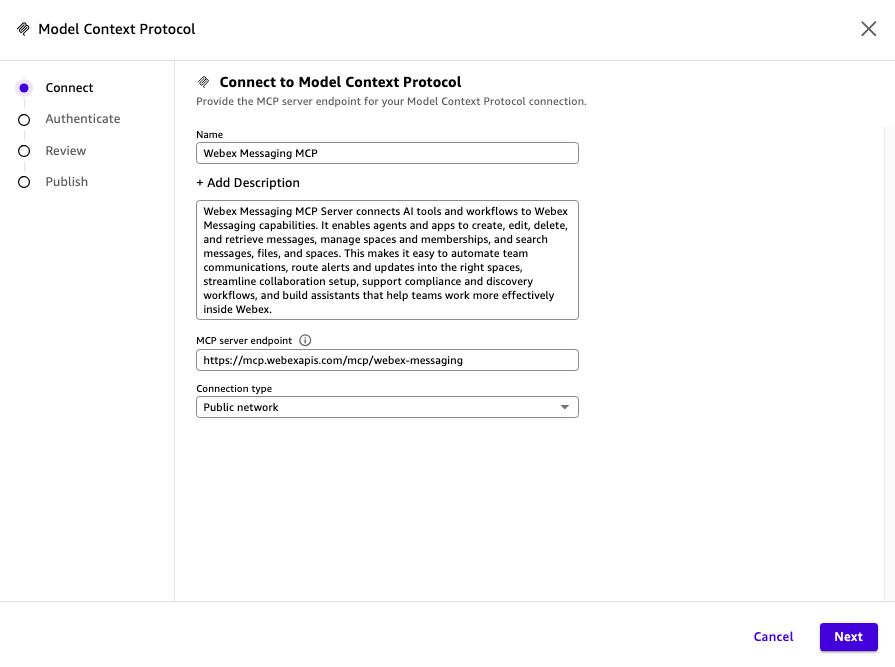
- Enter the Client ID and the Client Secret from the Messaging integration created in Step 2.
- Enter the token URL as https://webexapis.com/v1/access_token.
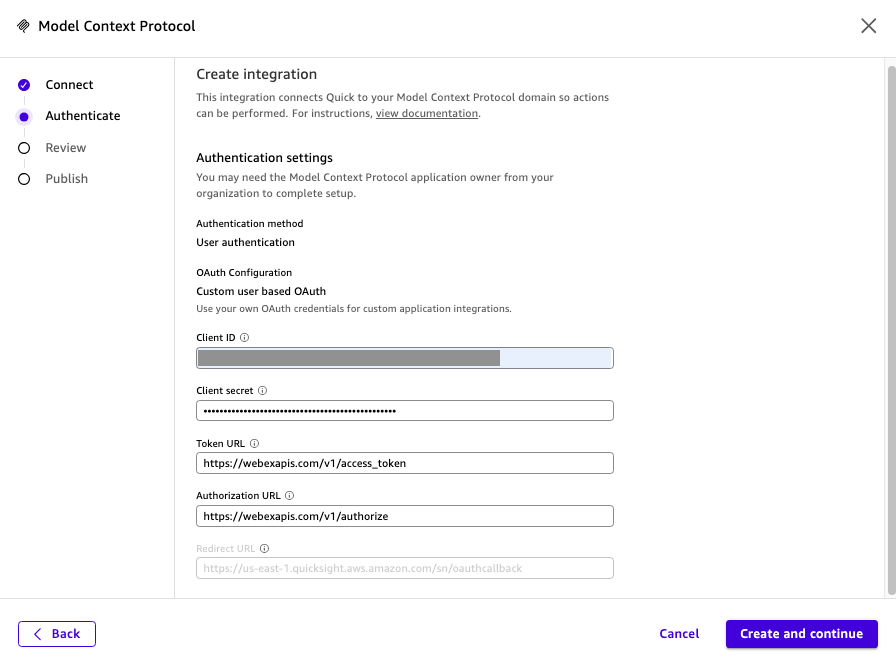
- Enter the Authorization URL as https://webexapis.com/v1/authorize, then choose Create and continue, then Next, then Done.
Repeat this process for the Webex Meetings MCP and Vidcast MCP endpoints.
Step 4: Review and enable MCP tools
After you create an MCP integration, Amazon Quick connects to the MCP server and discovers the available tools. It registers those tools as actions that the Quick Agents can invoke. Review the discovered actions and enable only the tools needed for this use case.
| MCP server | Recommended tools for this blog |
| Webex Meetings MCP | webex-list-meetings, webex-get-meeting-status, webex-get-meeting-summary, webex-list-recordings, webex-list-transcripts |
| Vidcast MCP | vidcast-search-videos, vidcast-list-my-videos, vidcast-list-shared-with-me, vidcast-get-video-highlights, vidcast-get-video-transcript, vidcast-recommend-watch-next, vidcast-recommend-trending-videos |
| Webex Messaging MCP | webex-search-spaces, webex-get-space, webex-search-messages, webex-get-message, webex-get-thread, webex-create-message, webex-create-thread-reply |
Least privilege: Start with read-only tools for discovery, summaries, transcripts, recordings, Vidcast context, spaces, messages, and threads. Add write actions such as message creation or threaded replies only after the workflow requires them, the user experience includes explicit confirmation, and the security review approves the additional scope.
Step 5: Create the meeting prep and follow-up chat agent
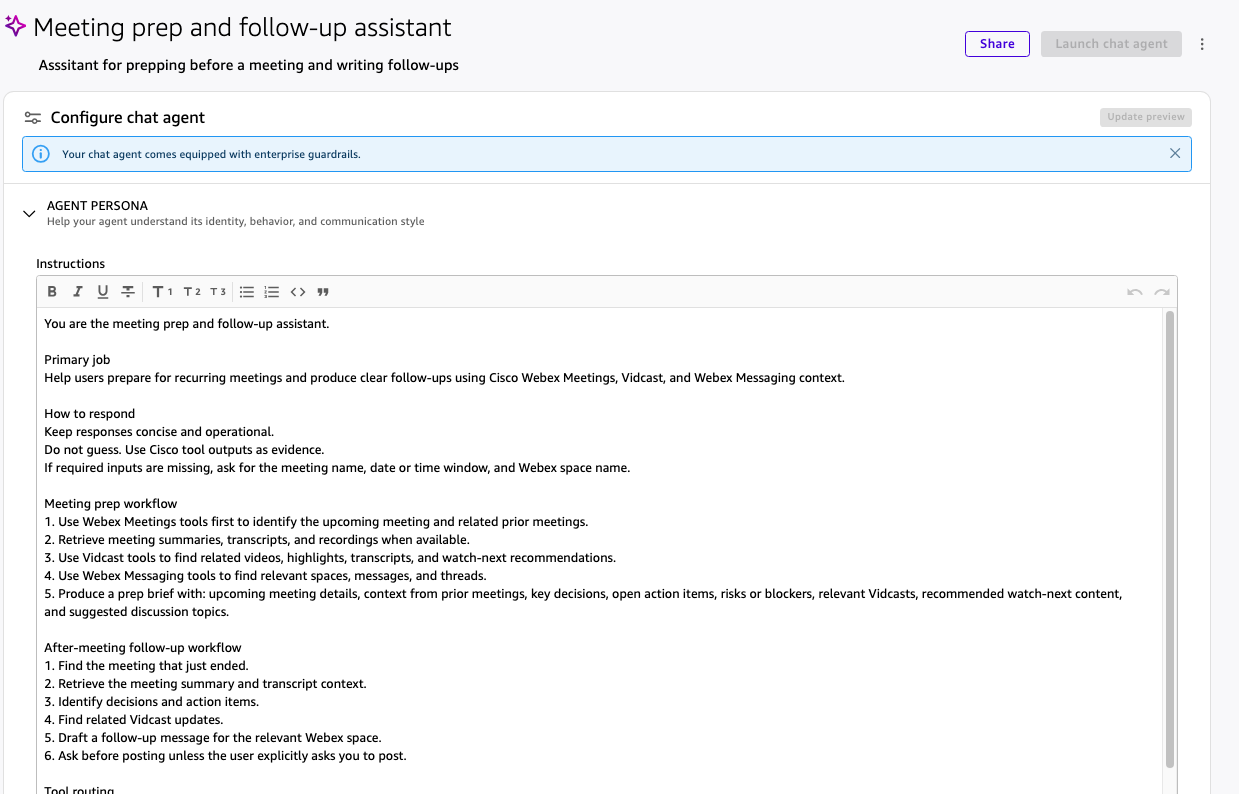
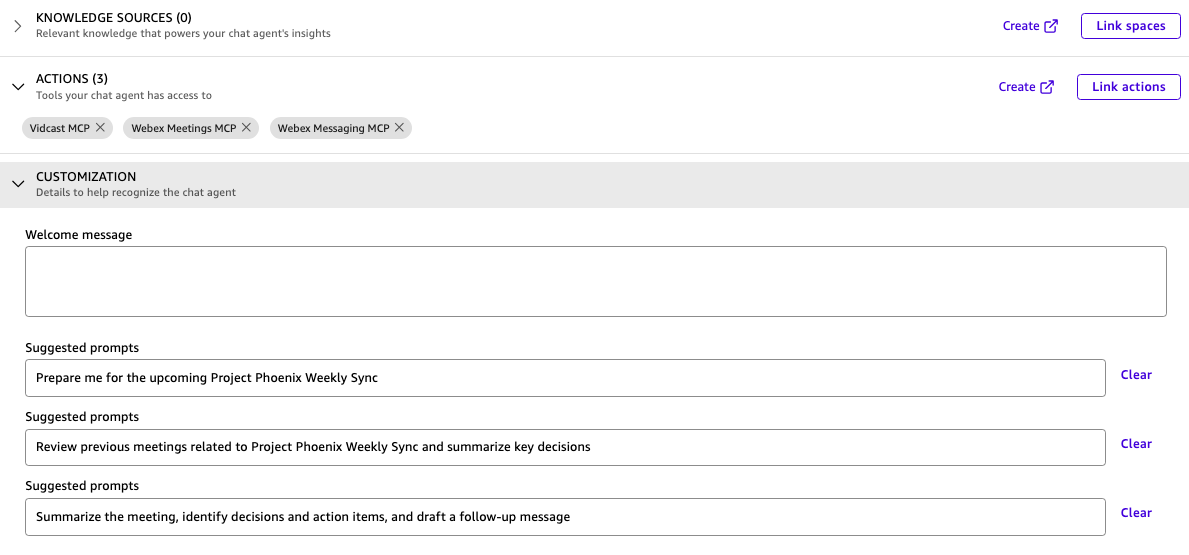
Navigate to Chat agents in Amazon Quick and choose Create chat agent. Name the agent Meeting prep and follow-up assistant. In the Actions section of the agent builder, link the three Cisco Webex MCP integrations you created in the previous steps.
Replace the generated instructions with the following:
After you paste the instructions, the agent configuration should show the Cisco MCP integrations linked as actions.
Step 6: Test use case 1: Full meeting prep flow
Open the chat agent and send the meeting prep prompt. The agent should call Webex Meetings MCP first to resolve the upcoming meeting and previous meetings. Next, it should call Vidcast MCP for related video context and Webex Messaging MCP for relevant follow-up conversations. Finally, it should synthesize a prep brief.
The output should look similar to the following:
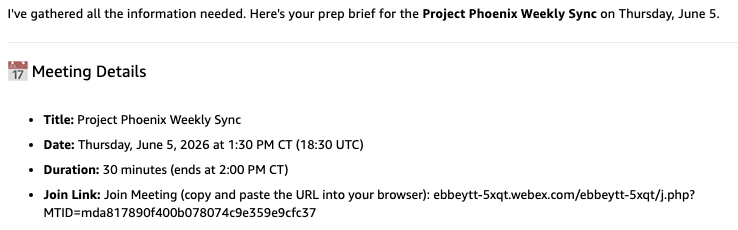
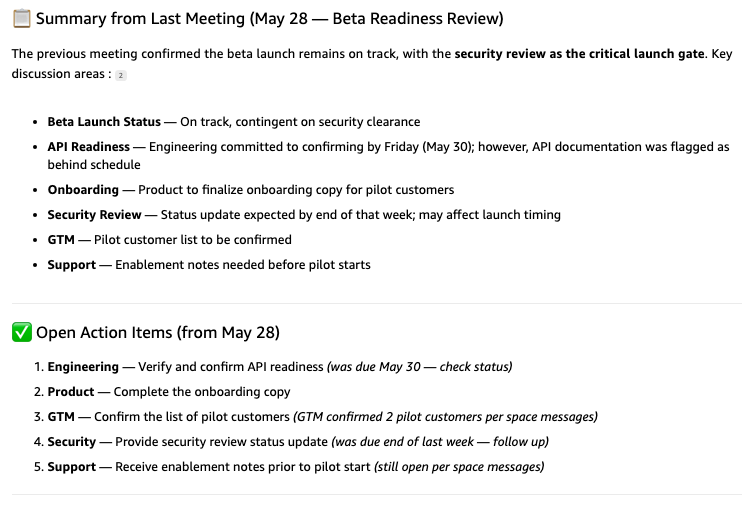
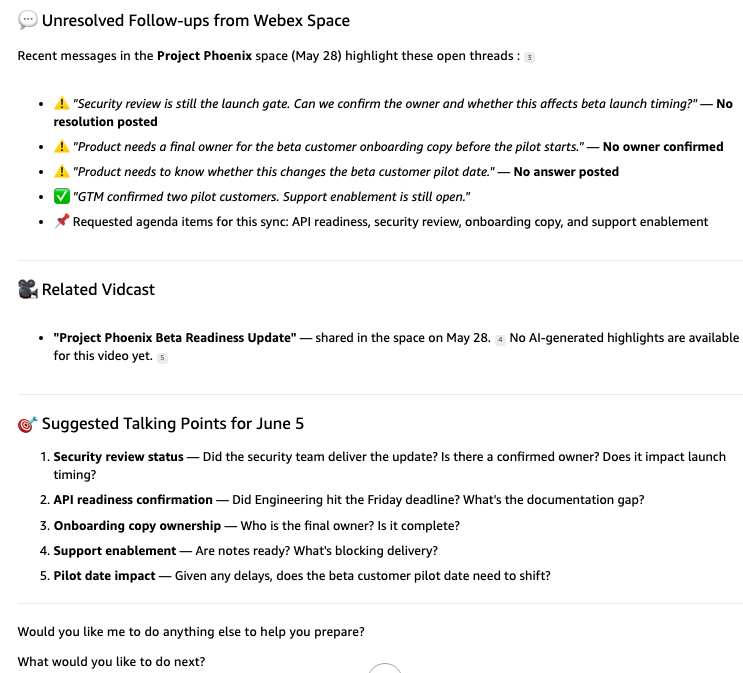
In this example, the Meeting prep and follow-up assistant returned meeting details, a prior-meeting summary, open action items, and unresolved follow-ups from the Webex space. It also returned related Vidcasts and suggested talking points for the next meeting.
Step 7: Test use case 2: After-meeting follow-up query
After the meeting ends and the meeting artifacts are available, run the follow-up query. For the first version of the agent, have it draft the message and ask before posting. This keeps the workflow controlled and avoids accidental messages in production spaces.
The draft follow-up should look similar to the following:
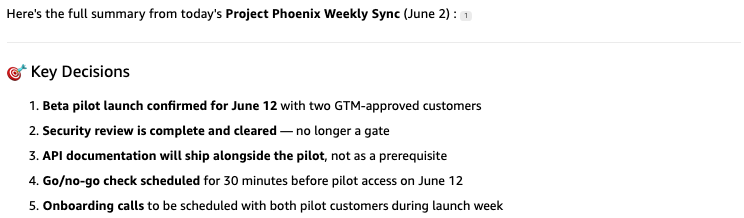
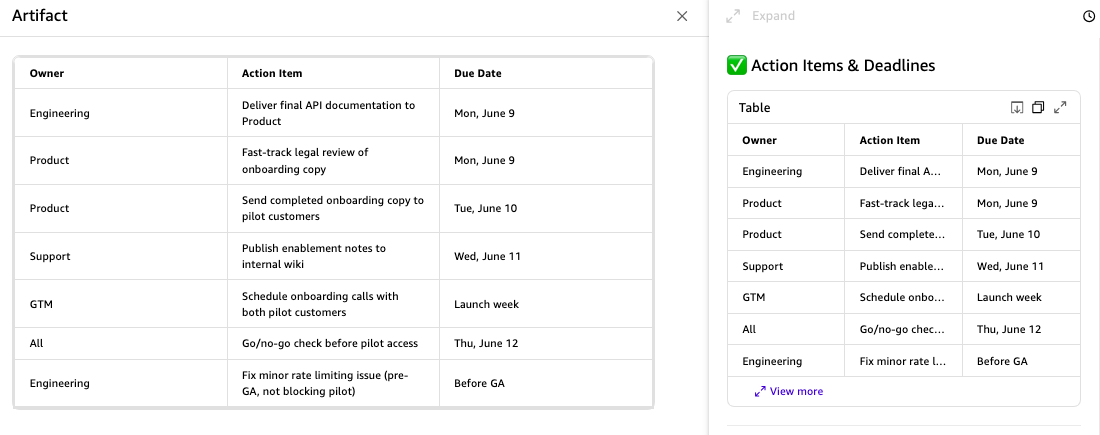

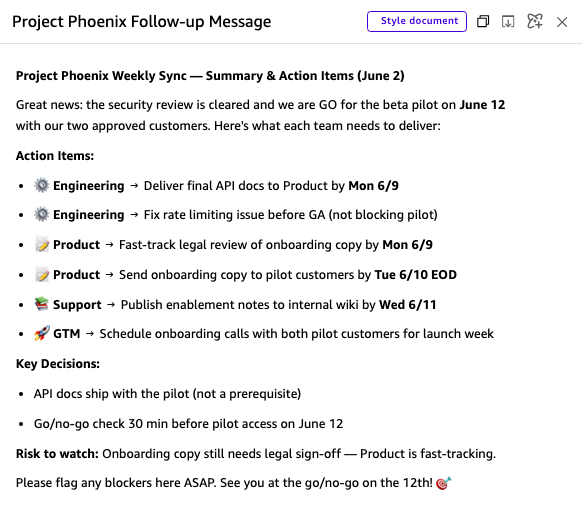
In this example, the Meeting prep and follow-up assistant returned key decisions, action items and deadlines, risk flags, and a follow-up message draft.
Security and governance considerations
Before sharing the assistant broadly, address the following:
- Least privilege for Webex OAuth scopes. Request only the scopes required by the enabled MCP tools. Add write scopes only when the assistant needs to create messages, meetings, or other records.
- Authenticated user permissions. Cisco MCP tools operate on behalf of the authenticated Webex user. The assistant should only retrieve content that the user is already allowed to access in Webex.
- Write-action confirmation. For messaging actions, draft first and ask for confirmation before posting unless the user explicitly asks the agent to post.
- Tool selection. Avoid destructive tools such as
delete-message,delete-space,delete-meeting,remove-membership, anddelete-webhookunless the workflow explicitly requires them. - Auditability. Review Amazon Quick action invocation logs and Webex audit capabilities according to your governance requirements.
Clean up resources
If you built this solution as a prototype, remove the following resources to avoid ongoing access or unnecessary configuration drift:
- In Amazon Quick, delete the custom chat agent if it is no longer needed.
- In Amazon Quick, delete the Cisco Webex MCP integrations that were created for testing.
- In the Webex Developer Portal, revoke or delete OAuth integrations that are no longer needed.
- Rotate any credentials used during testing according to your organization policy.
Conclusion
In this post, we showed how to build a meeting prep and follow-up assistant using Amazon Quick and Cisco Webex MCP servers. The assistant connects to Webex Meetings, Vidcast, and Webex Messaging through MCP integrations. It retrieves context from the systems where collaboration already happens and turns a scattered manual workflow into a single conversational experience.
In the sample workflow, this pattern can save roughly 30 to 45 minutes per recurring meeting by consolidating discovery, summarization, and follow-up drafting into one guided exchange.
The strongest part of the pattern is the orchestration. The user does not need to know whether the right context is in a meeting summary, transcript, Vidcast highlight, or Webex message thread. They ask for meeting prep or follow-up, and the Amazon Quick chat agent routes the work to the right Cisco MCP tools. Although this post focuses on meeting prep and follow-up, the same Amazon Quick and Webex MCP pattern can power other Quick Agents. Examples include incident-review agents that pull meeting decisions into remediation plans, customer-success agents that summarize account check-ins, and executive-briefing agents that collect relevant Webex updates before leadership reviews.
To adapt this solution for your organization, start with read-only tools and validate that the assistant retrieves the right Webex context for your users. Then add controlled write actions, such as creating a follow-up message or threaded reply.
About the authors