




















DMA Guard Operation Guide
Hi, there!Thank you for your continued support for Arena Breakout: Infinite. The DMA Guard security feature was recently launched, and you may receive related system security prompts while starting or running the game. To ensure DMA Guard operates properly, we have prepared a complete configuration guide. Please follow the instructions below to complete the setupThis message indicates that your system has not activated the necessary hardware features (VT-d for Intel, IOMMU for AMD) that allow B.D.C to deploy its high-security DMA Protection shield. You simply need to enter your computer's BIOS settings and manually enable this feature.DMA Guard is an enhanced hardware DMA protection feature that further enhances the protection of external abnormal hardware on the basis of the existing Windows security feature "kernel DMA protection"( Kernel DMA Protection | Microsoft Learn), preventing unauthorized access to memory by external hardware devices and avoiding DMA attacks; To further protect your account from malicious exploitation.Instructions on how to enable the DMA Guard:You need to access the BIOS page and open the corresponding options in the BIOS. Depending on your platform, the names of the switches will vary, including:Intel platform:VT-D: Virtualization Technology for Directed I/O, direct I/O virtualization technologyAMD platform:IOMMU: Input-Output Memory Management Unit, an input output memory management unit provided by AMD processorsUse this simple recon protocol to find the mother board and platform if you are not sure:① Press the Windows Key + R.② Type msinfo32 and hit Enter.Look for "MotherBoard Manufacturer" , "System Manufacturer" and "Processor" . This information determines your BIOS entry key and navigation path.Then you need to rapidly tap or long press the "Entry Key" as soon as the screen lights up after a restart (before Windows loads), see typical entry keys for motherboards developed by different manufacturers.● ASUS:F2 or DEL● Gigabyte:F12 or DEL● MSI:DEL● HP:F2, F10 (Laptops), F12 or ESC (Desktops)● Dell:F2 (sometimes F12)● Lenovo:F2 or Fn+F2 (F1 for ThinkPads)● Acer:F2 (Assist for some latest Sony devices)● Sony:F2 (Assist for some latest Sony devices)● Toshiba:F1 or F2 during Cold Boot● IBM/ThinkPad:F1 during Cold BootNote: If you are still not able to enter BIOS setup, please contact your motherboard manufacturer and check on its specifications for BIOS entry.Find your manufacturer and CPU type below. You are looking for a feature named VT-d or IOMMU where you can tick the box or enable the toggle, see specific path below.HPIntelGo to Advanced -> Check VT-d and DMA Protection.LenovoIntelGo to Security -> Virtualization -> Check Intel VT-d Feature and Kernel DMA Protection.ASUSAMDGo to Advanced -> AMD_CBS -> Set IOMMU to Enabled. (Also check DMA Protection and DMAr Support in NBIO Common Options if available).IntelGo to Advanced -> System Agent (SA) Configuration -> Set VT-d to Enabled. (Set Control IOMMU Pre-boot Behavior to Enable IOMMU during boot).MSIAMDGo to Overclocking -> Advanced CPU Configuration -> AMD CBS -> Set IOMMU to Enabled. (Also check DMA Protection and DMAr Support if available).IntelGo to Overclocking -> CPU Features -> Set Intel VT-D Tech to Enabled. (Set Control IOMMU Pre-boot Behavior to Enable IOMMU during boot).Attention: Some computer manufacturers may customize BIOS pages and commands, so there may be situations where the entry keys/pages do not match the tutorial. The above content is for reference only. You can contact your motherboard service provider for further support.1. Why does the security team require these system changes?To maintain a fair and clean game environment, the security team must gain control over system mechanisms that cheats actively exploit. Some advanced cheats hide behind system protections or third-party software to gather game data undetected and evade security checks. By controlling this low-level layer, we eliminate their hiding spots.B.D.C Recommendation: For maximum security, we advise against running unnecessary third-party software while playing Arena Breakout: Infinite.2. I don't cheat. Why is this required of me? Is my account flagged?This is a proactive defense protocol. To prevent external programs from exploiting system vulnerabilities, the security system may require enabling DMA hardware protection for accounts that show potential signs of an abnormal login environment or security risks (based on historical login devices, network changes, etc.). This measure is preventative and significantly boosts your account protection, minimizing the risk of your credentials being maliciously exploited by others.Account Security Protocol: We strongly recommend you reduce account sharing, promptly modify your password, and avoid frequent network environment changes that could bring risk to your account.

Hi, there!
Thank you for your continued support for Arena Breakout: Infinite. The DMA Guard security feature was recently launched, and you may receive related system security prompts while starting or running the game. To ensure DMA Guard operates properly, we have prepared a complete configuration guide. Please follow the instructions below to complete the setup
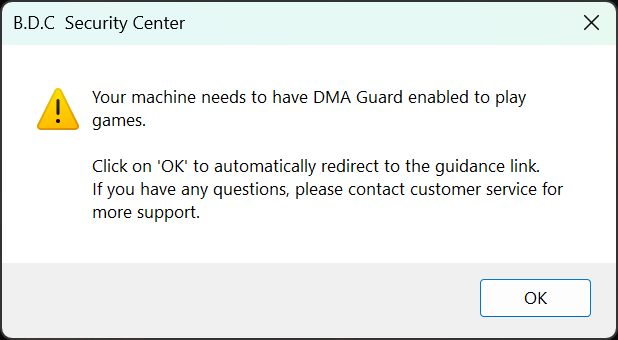
This message indicates that your system has not activated the necessary hardware features (VT-d for Intel, IOMMU for AMD) that allow B.D.C to deploy its high-security DMA Protection shield. You simply need to enter your computer's BIOS settings and manually enable this feature.
DMA Guard is an enhanced hardware DMA protection feature that further enhances the protection of external abnormal hardware on the basis of the existing Windows security feature "kernel DMA protection"( Kernel DMA Protection | Microsoft Learn), preventing unauthorized access to memory by external hardware devices and avoiding DMA attacks; To further protect your account from malicious exploitation.
Instructions on how to enable the DMA Guard:
You need to access the BIOS page and open the corresponding options in the BIOS. Depending on your platform, the names of the switches will vary, including:
Intel platform:VT-D: Virtualization Technology for Directed I/O, direct I/O virtualization technology
AMD platform:IOMMU: Input-Output Memory Management Unit, an input output memory management unit provided by AMD processors
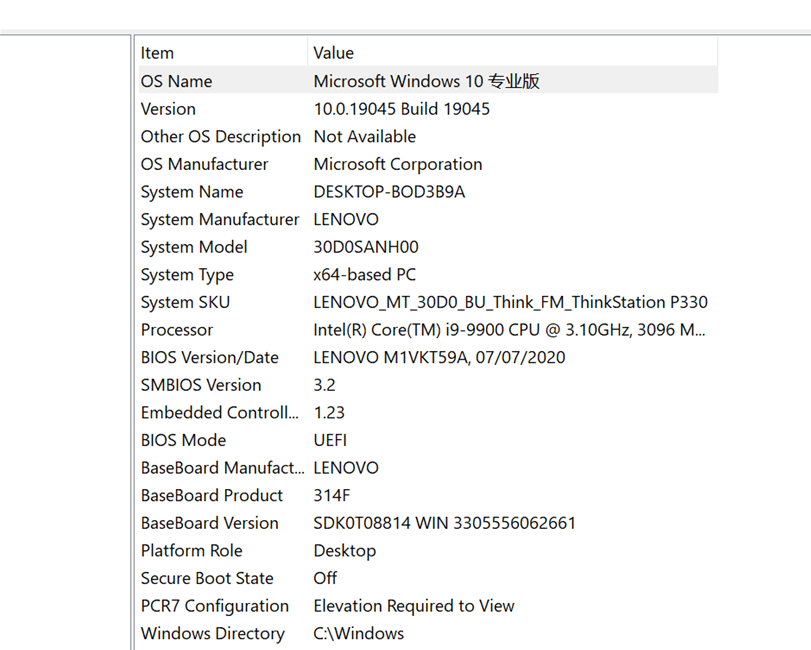
Use this simple recon protocol to find the mother board and platform if you are not sure:
① Press the Windows Key + R.
② Type msinfo32 and hit Enter.
Look for "MotherBoard Manufacturer" , "System Manufacturer" and "Processor" . This information determines your BIOS entry key and navigation path.
Then you need to rapidly tap or long press the "Entry Key" as soon as the screen lights up after a restart (before Windows loads), see typical entry keys for motherboards developed by different manufacturers.
● ASUS:F2 or DEL
● Gigabyte:F12 or DEL
● MSI:DEL
● HP:F2, F10 (Laptops), F12 or ESC (Desktops)
● Dell:F2 (sometimes F12)
● Lenovo:F2 or Fn+F2 (F1 for ThinkPads)
● Acer:F2 (Assist for some latest Sony devices)
● Sony:F2 (Assist for some latest Sony devices)
● Toshiba:F1 or F2 during Cold Boot
● IBM/ThinkPad:F1 during Cold Boot
Note: If you are still not able to enter BIOS setup, please contact your motherboard manufacturer and check on its specifications for BIOS entry.
Find your manufacturer and CPU type below. You are looking for a feature named VT-d or IOMMU where you can tick the box or enable the toggle, see specific path below.
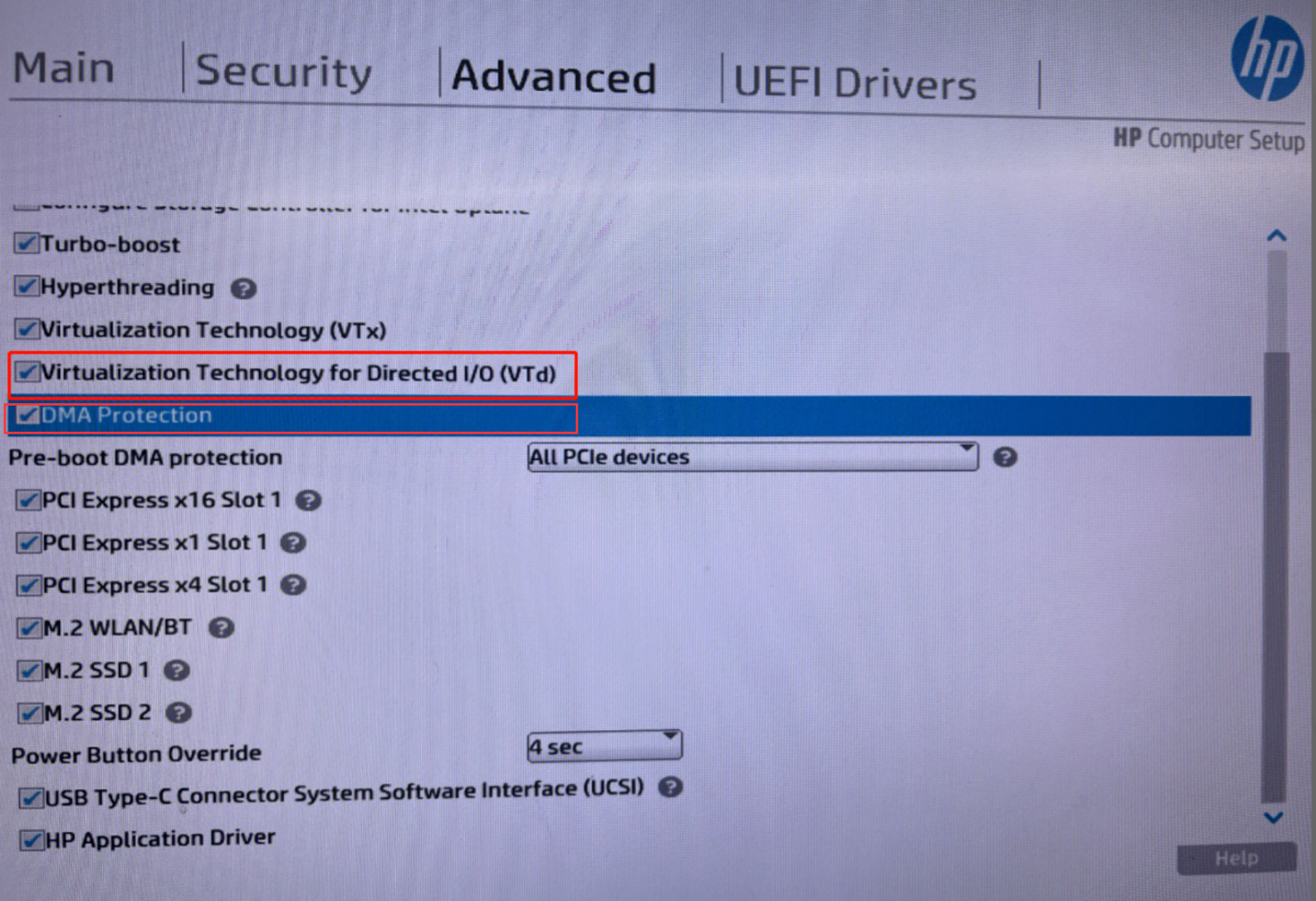
HP
Intel
Go to Advanced -> Check VT-d and DMA Protection.
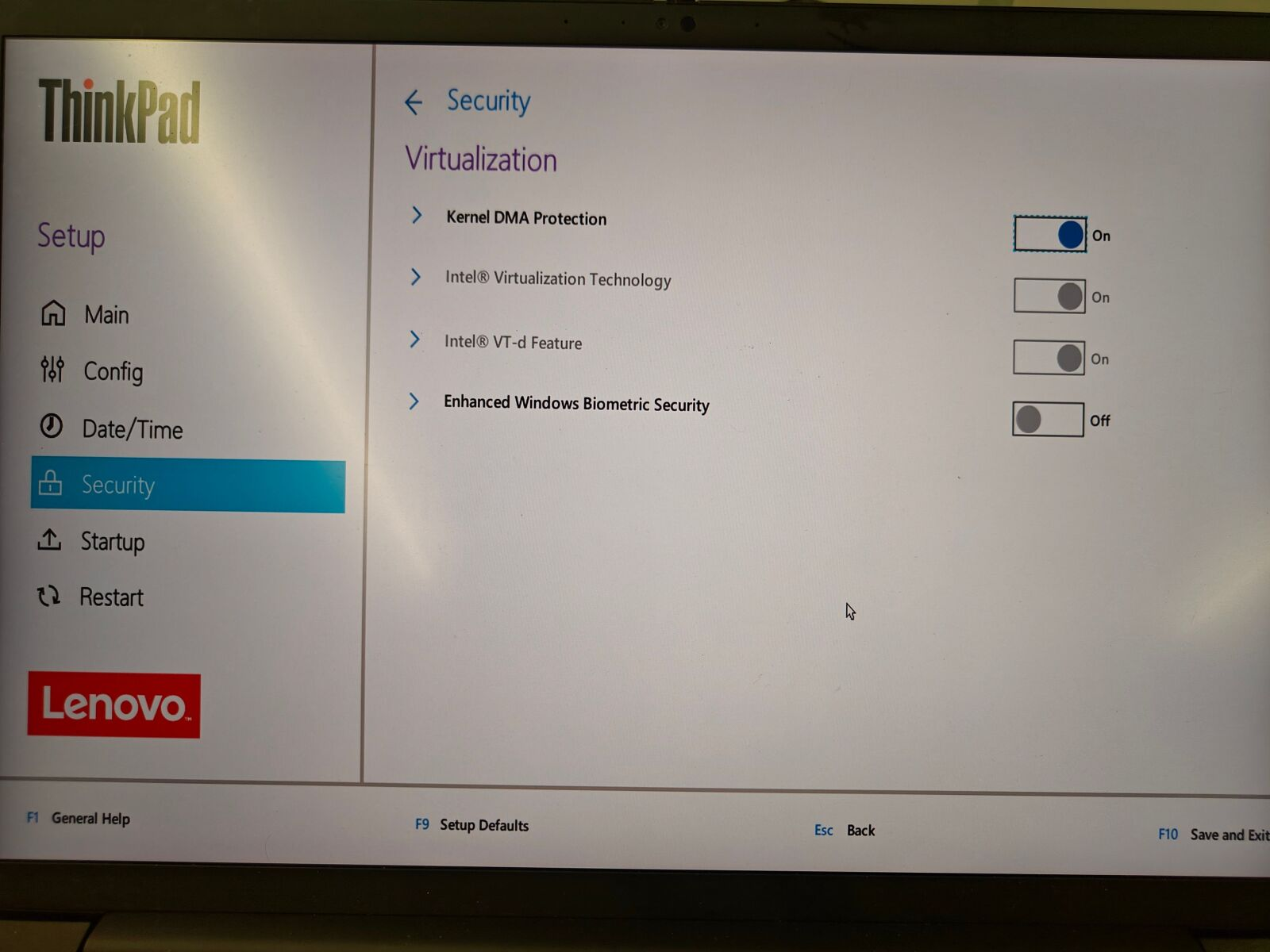
Lenovo
Intel
Go to Security -> Virtualization -> Check Intel VT-d Feature and Kernel DMA Protection.
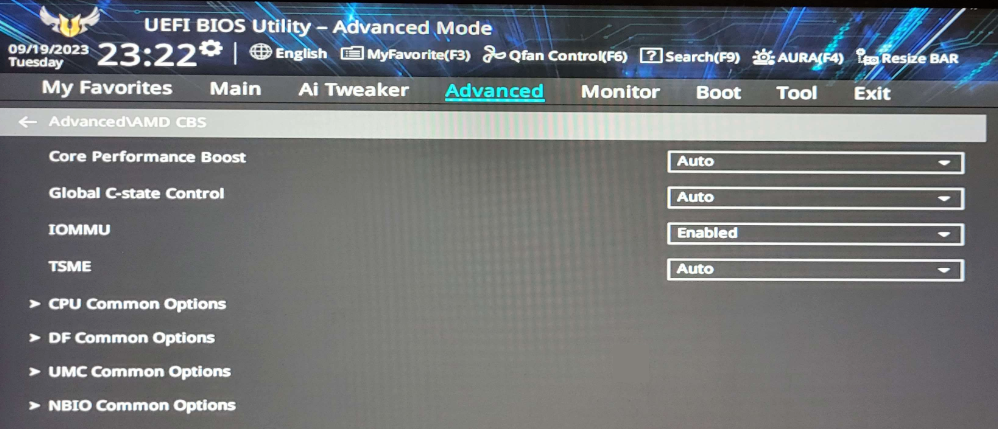
ASUS
AMD
Go to Advanced -> AMD_CBS -> Set IOMMU to Enabled. (Also check DMA Protection and DMAr Support in NBIO Common Options if available).
Intel
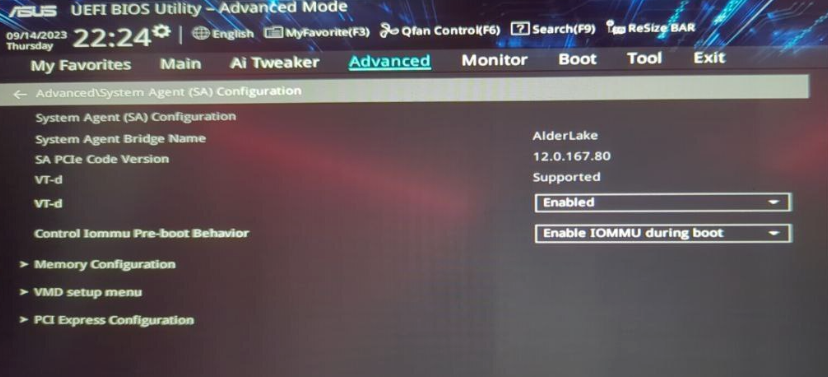
Go to Advanced -> System Agent (SA) Configuration -> Set VT-d to Enabled. (Set Control IOMMU Pre-boot Behavior to Enable IOMMU during boot).
MSI
AMD
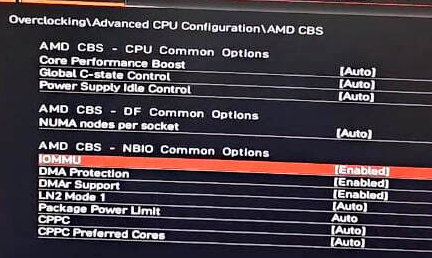
Go to Overclocking -> Advanced CPU Configuration -> AMD CBS -> Set IOMMU to Enabled. (Also check DMA Protection and DMAr Support if available).
Intel
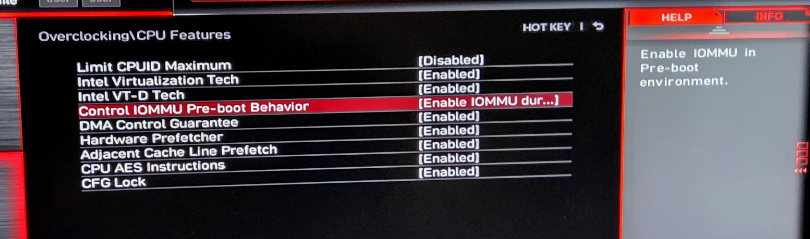
Go to Overclocking -> CPU Features -> Set Intel VT-D Tech to Enabled. (Set Control IOMMU Pre-boot Behavior to Enable IOMMU during boot).
Attention: Some computer manufacturers may customize BIOS pages and commands, so there may be situations where the entry keys/pages do not match the tutorial. The above content is for reference only. You can contact your motherboard service provider for further support.

1. Why does the security team require these system changes?
To maintain a fair and clean game environment, the security team must gain control over system mechanisms that cheats actively exploit. Some advanced cheats hide behind system protections or third-party software to gather game data undetected and evade security checks. By controlling this low-level layer, we eliminate their hiding spots.
B.D.C Recommendation: For maximum security, we advise against running unnecessary third-party software while playing Arena Breakout: Infinite.
2. I don't cheat. Why is this required of me? Is my account flagged?
This is a proactive defense protocol. To prevent external programs from exploiting system vulnerabilities, the security system may require enabling DMA hardware protection for accounts that show potential signs of an abnormal login environment or security risks (based on historical login devices, network changes, etc.). This measure is preventative and significantly boosts your account protection, minimizing the risk of your credentials being maliciously exploited by others.
Account Security Protocol: We strongly recommend you reduce account sharing, promptly modify your password, and avoid frequent network environment changes that could bring risk to your account.