















How skills and agents work in AWS Quick
Repeatable tasks like status updates, release notes, and ticket creation can be encoded in AWS Quick through agents and skills. This post covers how agents, skills, and your data fit together in AWS Quick, how to build and share skills for your team, and how the official catalog and custom agents help you use them.
If you use AI agents, you’ve probably explained the same task more than once. You might describe how to build your weekly status update, write release notes, manage a project, or create tickets. These are all repeatable tasks that you can encode using AWS Quick through agents and skills. AWS Quick is an AI-powered service for automating tasks, analyzing data, building web applications, and conducting research. You work with it in natural language, and Quick uses AI agents to process your requests against your connected data sources and applications.
In this post, we cover how agents, skills, and your data fit together in AWS Quick, and how to build and share skills that work for your team. We also show how the official catalog and custom agents help you put those skills to use.
Understanding foundational concepts
In this section, we explain the foundational concepts that help you understand AWS Quick in relation to agents, skills, and your data.
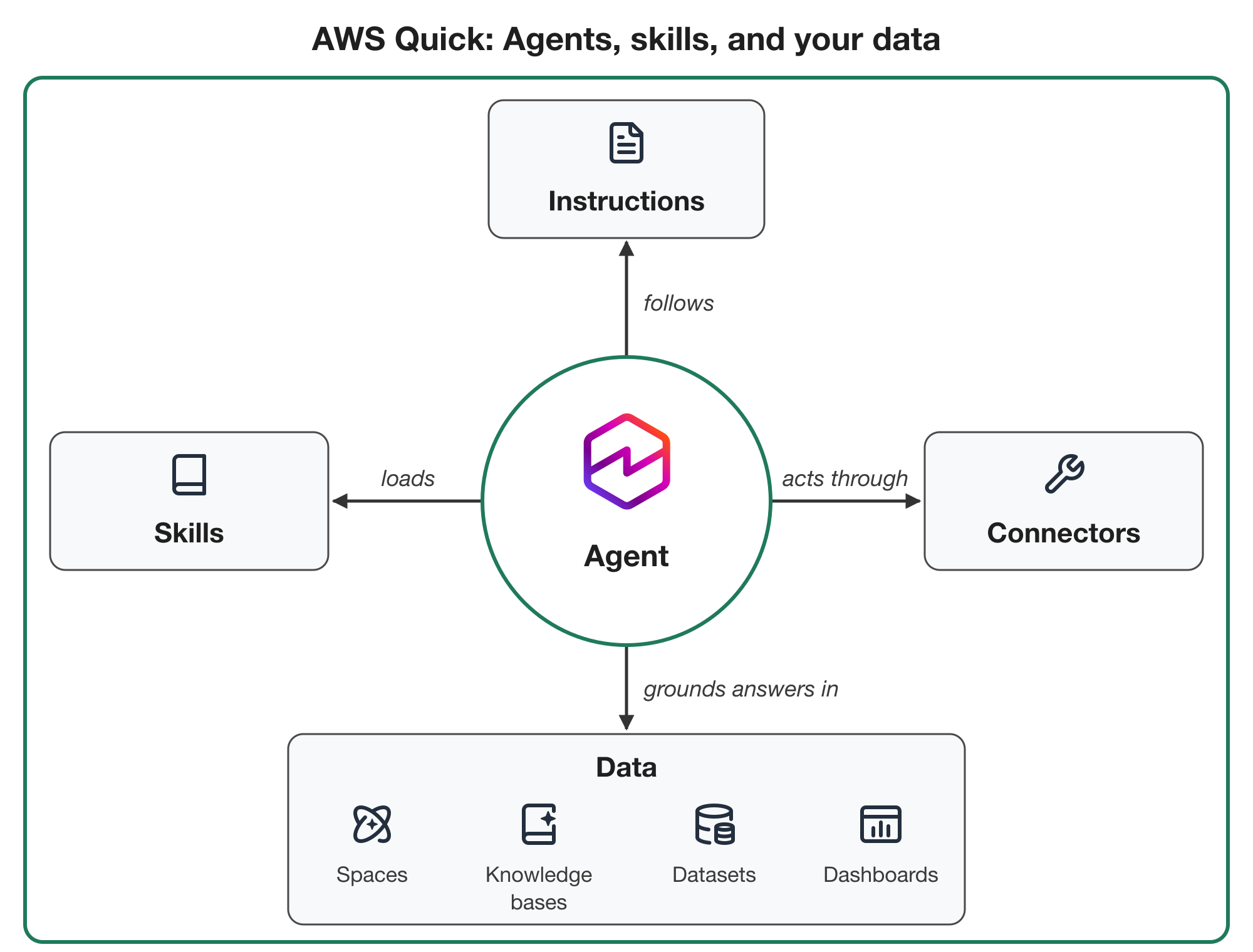
Figure 1: How a Quick agent follows its instructions, loads the skills a task needs, acts through connectors, and grounds its answers in your data
The agent sits at the center of Figure 1. It follows its instructions, loads the skills that a task calls for, takes action through connectors, and grounds its answers in your data: spaces, knowledge bases, datasets, and dashboards.
Working with agents
An agent in AWS Quick is a configurable AI with its own instructions, knowledge sources (spaces), and connectors, which it uses to answer questions and get work done for you. You can work with an agent in chat, or let it run on its own using a routine. Agents can only reach the resources and services that you can, and you decide what each agent is allowed to do.
Quick is the default built-in agent that every user has access to. It has no fixed scope, so in each conversation it works with whatever resources you have access to, such as your spaces, knowledge bases, dashboards, connectors, and skills. You don’t need to decide in advance which data or tools a request needs, so you can start most work with Quick.
A custom agent is one that you or someone on your team configures for a specific job. An example is a human resources (HR) onboarding assistant that answers new-hire questions from the HR team’s space. You give it its own instructions and limit it to the spaces, connectors, and skills that your use case requires. After you test and publish it, you can share it with other users and groups within your AWS Quick account. For a walkthrough of building one, see Build AI-powered employee onboarding agents with AWS Quick.
Working with data
Agents ground their answers in the data you connect to Quick. A space is a curated collection of documents and AWS Quick resources that an agent uses as a source of information. You can create one for yourself, your team, or another group in your organization. You can upload files and folders to a space, or add assets such as dashboards, knowledge bases, action connectors, and datasets. When you start a conversation with Quick, you can attach a space to narrow the data that Quick uses for that conversation. When you add a space to an agent, the space becomes part of the agent’s configuration, and the agent draws on it when a request needs it.
A knowledge base is an organized, indexed collection of documents or content from data sources, optimized for retrieval and question answering. Quick syncs knowledge bases from sources such as Google Drive, Microsoft OneDrive, Confluence, Microsoft SharePoint, Amazon Simple Storage Service (Amazon S3), web crawler, or Amazon Bedrock Managed Knowledge Bases. Quick keeps them up to date on a sync schedule.
Datasets and dashboards come from AWS Quick Sight, the business intelligence feature in Quick, which is available in accounts provisioned through the AWS Management Console. A dataset is a prepared collection of data ready for use in analyses and dashboards. A dashboard is the published version of an analysis that you share with other Quick users. With datasets, you can build semantically rich metadata over your structured data, such as database tables, so you can accomplish complex analytical use cases with natural language.
Lastly, a connector links AWS Quick to an external application or a native tool, so agents can read data and take action on your behalf. Cloud connectors connect Quick to services such as Microsoft Outlook, Slack, Jira, Asana, and Salesforce, and to remotely hosted Model Context Protocol (MCP) servers. They’re available on every device where you use Quick. Local connectors run on your own machine, such as an MCP server that you host yourself, so their tools are available only when that machine is on and connected. For the full list of connector types, see Connectors and Integration-specific guides in the AWS Quick User Guide.
Together, these make your data, documents, and applications available through natural language, so you can ask questions and take actions in your connected sources.
Working with skills
A skill is a reusable set of instructions that teaches an agent how to do a specific task. Skills are also the foundation of how an agent in Quick behaves and completes work. Like other agents, an agent in Quick runs in a harness (a managed agent loop) that follows the reasoning and acting (ReAct) pattern. When you supply AWS Quick with a prompt, the agent uses its available tools and instructions to accomplish its goal and supply you with a response. Agent frameworks such as the Strands Agents SDK are built around the same model-driven loop.
Much of what Quick does by default comes from system skills. For example, you can ask Quick to generate a Word document, a PowerPoint presentation, an Excel spreadsheet, or a PDF. A system skill can then create or edit the document using code with scripts the skill bundles. Other system skills browse the web, run code, execute deep research, transcribe audio and video, and generate images. Some manage Quick itself, such as building AWS Quick Flows, scheduling routines, handing work to a coding agent such as Kiro, managing your memories and knowledge graph, or tracking your to-dos. Within Quick, you can turn system skills on or off, but you can’t edit, duplicate, export, publish, share, or delete them.
Skills can do many kinds of work because of the capabilities and tools that AWS Quick supplies. For example, one skill can produce a deliverable, such as a weekly status update built from your template. Another can automate a workflow across your connectors, such as gathering the week’s Jira updates and posting a summary to Slack. A skill can also run calculations in Python scripts and chart the results with JavaScript.
What is a skill?
Quick skills follow the Agent Skills specification, which Anthropic originally developed and released as an open standard. AWS Quick on desktop, which launched in preview in April 2026 and became generally available in September 2026, uses this specification.
A skill is a folder with a Markdown file SKILL.md at its root, plus any optional scripts or other reference files its instructions use. The file’s frontmatter, the attributes between two --- lines, holds the name, description, and any other metadata relevant to your skill. See the following shortened example of a skill named release-notes-generator.
The description and name are the two most important aspects to triggering a skill. Quick uses progressive disclosure when it loads your skills into the agent’s prompt. The agent reads only each skill’s name and description until a request calls for that skill. It then loads the skill’s full instructions, as How agents load skills describes. This means certain phrases can help trigger the skill, such as “generate my release notes for version 2.3.” The specification caps name at 64 characters and description at 1,024, and recommends instructions within the skill to be under 5,000 tokens.
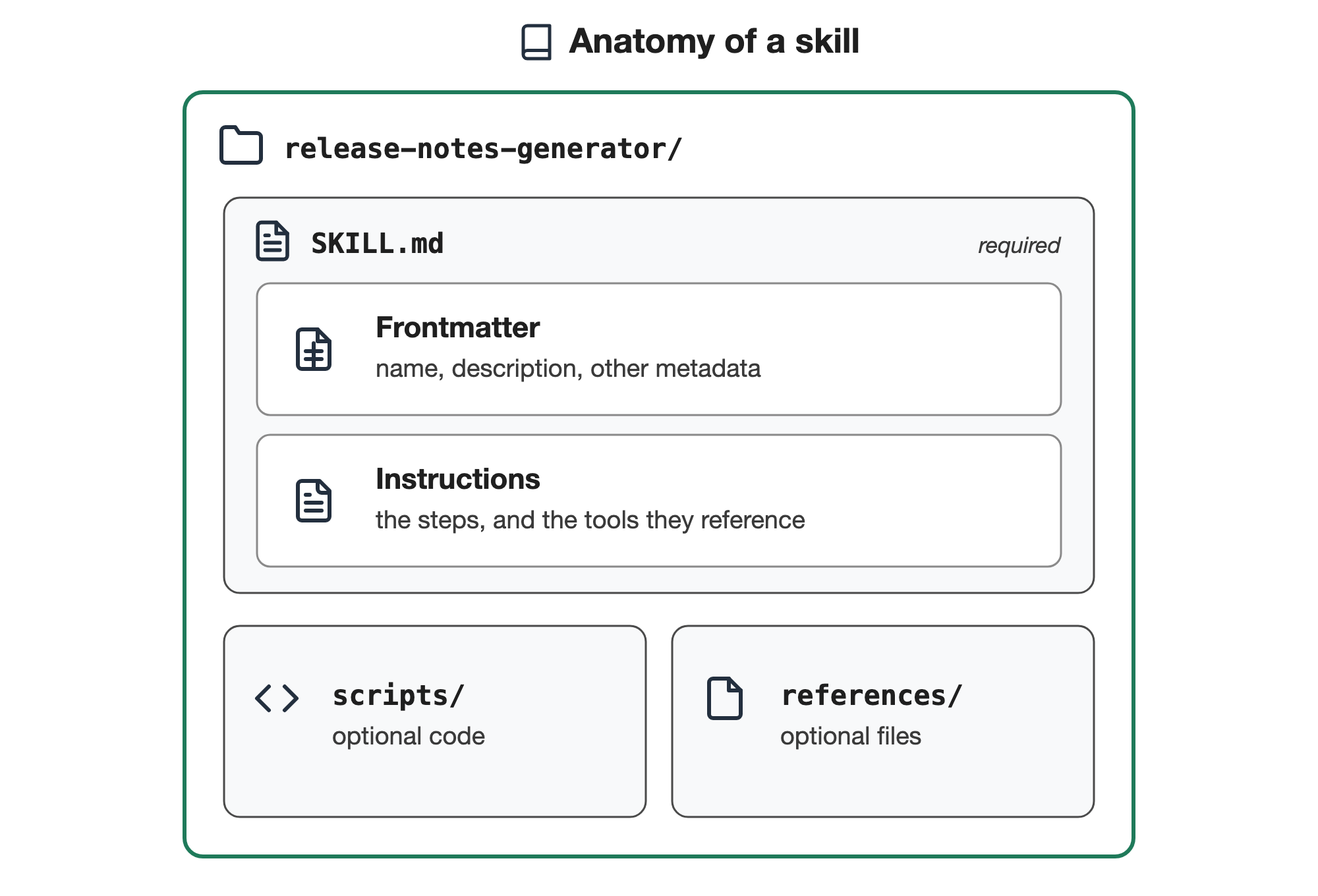
Figure 2: The release-notes-generator skill folder, with a required SKILL.md file plus optional scripts and references folders
Build and share a skill in Quick
You can create a skill from chat, from a file (a .md or .zip file), or from a folder that has a SKILL.md file at its root. This post focuses on chat. To start, describe your task to Quick in chat. For example, you can start with this template (replace the content between <> brackets with your requirements):
This is all you need to start building your own skills. Alternatively, you also can take a multi-turn conversation that you previously interacted with to accomplish a task and ask Quick to generate a skill from it. After you are satisfied with the final result, publish and share your skill:
- Choose Customize, and then choose Skills.
- Find your skill in draft, and open its detail panel.
- Choose Publish.
- Choose Share, and then choose the people or groups to share it with.
Publishing and sharing are separate steps, so publishing alone doesn’t give anyone access to the skill. The people you share it with add it from Add to Quick under Shared with me, and their version stays in sync each time you publish again. For the current steps, see Draft and published versions and Sharing your skills in the AWS Quick User Guide.
Improve your skills with best practices
A skill that you build from a quick description or conversation might work consistently for you, but there are many considerations you must take into account when building production skills that you share with your team. Skills are like code, and many engineering best practices can help any knowledge worker build them.
- “It works on my machine” is a common phrase among software engineers. It describes software that runs for the person who built it but breaks when someone else installs or uses it. When building skills, you must consider your environment. Skill instructions can use agents to query data sources or invoke connectors or tools. Software engineers typically work around this limitation by documenting the prerequisites to using software. For example, if you are sharing a skill in isolation, you might want to create a README with your skill documenting these requirements. If you share an agent that uses your skill, also share the sources it connects to, or the people you share it with get answers only from the sources they can already access.
- Plan for failures. Agents use connected sources that depend on third- and first-party services. When engineers write code, they need to understand what to do if a piece of software fails. If you incorporate these scenarios into your skill instructions, your agents can adapt based on concrete instructions. You don’t need to be an expert in the downstream service, because an agent works toward the goal and can retry or try another approach when a step fails. You do need to list what to do when a failure affects your task or business process. Take the following snippet from a workflow in a skill that might have ramifications if it fails.
What should the agent do if sending the email fails? You might want to add instructions on what to do in that scenario.
Handling failure scenarios is even more important when executing agents on a schedule without a human in the loop.
- Test every change. Software engineers write multiple forms of tests, such as unit and integration tests, that help them test software. These tests are run on every change. With skills, it is equally important that you generate your own test cases for various scenarios and continue to add new tests as you make changes. There are multiple ways to do this, but it’s best to test using the environment you expect your downstream users to use.
There are many more aspects to consider when building production skills:
- Add release notes to each change.
- Keep hardcoded values that change, such as
/Users/me/notesor#my-team, out of the steps, and declare them as inputs that each person provides. - Record when the skill changed with human-readable dates.
- Record where each reference file came from, so that if the source changes, you can update your skill instructions too.
- Store a checksum, a fingerprint of the skill’s files that shows when a copy differs from the version that was checked.
- Check the structure after every change, the way a linter catches mistakes before anyone reviews the code.
- Build skills in a consistent way, so your team can contribute changes and review them faster.
For any user, this is a lot to consider. That’s why the AWS Quick official catalog provides pre-built resources, such as skills, built with these best practices in mind.
AWS Quick official catalog
The catalog is a collection of agent resources that you can install and use as they are, or take as a starting point and adapt to your own work. The catalog states that every resource in it is tested and scanned for quality, security, and other factors before it’s published. The skills cover everyday productivity and the work of teams such as sales, marketing, HR, legal, project management, customer success, and software engineering. They also cover industries such as finance, healthcare and life sciences, energy and utilities, hospitality, and supply chain and logistics.
The catalog includes the Skill Architect skill, a pre-built skill that applies these engineering best practices for you, as Build skills with software engineering practices in AWS Quick describes. To install it, choose Customize, Skills, Browse all, and then Official. Enter skill architect in the search box, and then choose Install. For the current steps, see Install skills in AWS Quick on desktop.
Connect skills to your agents
When you create an agent, you configure its name, description, and instructions, and you choose the spaces it reads from, the connectors it can use, and the skills it can load. For details, see Agent configuration in the AWS Quick User Guide. An agent works best when it solves a particular use case, such as answering new-hire questions or preparing a weekly status report, and bounding its world to the spaces, skills, and connectors that use case requires. By default, an agent can use all of your skills, and when you add specific skills, the agent is limited to those. That becomes problematic when you share the agent, because it runs with the access of the person using it. The same request can reach different data and skills for each person, and can return incomplete answers when it needs a source that only you can access.
If you want to tie them all (agents, skills, and spaces) together, try out the personal agent architect module in the linked workshop.
Conclusion
In this post, we showed how agents use skills and your data in AWS Quick, and how to build and share skills that work for your team. We also showed how the official catalog and custom agents help you put those skills to use.
To learn more, find events, or share your success with AWS Quick, visit the AWS Quick Community. The AWS Quick Community has learning material, feature announcements, events, and examples from other users. You can also ask questions in its Q&A forum.
For a recorded session on the topics in this post, watch Encode Your Enterprise with Agents & Skills on AWS Quick. The session covers how a skill is structured and loaded, how skills work with agents, spaces, and connectors, and best practices for building skills that you share. It ends with a demo of the official catalog and the Skill Architect skill.
Here are some additional resources designed by the specialists who work on AWS Quick every day:
- A Complete Guide to AWS Quick: The Agentic AI Business Workspace.
- AWS Quick: End-to-End Business Use Cases with Rich Integrations.
- AWS Quick Administration Workshop.
- Deep dive into AWS Quick Sight.
- AWS Quick Knowledge Hub – Official Code Samples and Solutions.
- AWS blog posts about AWS Quick.
About the author