















Create AI-powered chat assistants for your enterprise with Amazon Quick Suite
In this post, we show how to build chat agents in Amazon Quick Suite. We walk through a three-layer framework—identity, instructions, and knowledge—that transforms Quick Suite chat agents into intelligent enterprise AI assistants. In our example, we demonstrate how our chat agent guides feature discovery, use enterprise data to inform recommendations, and tailors solutions based on potential to impact and your team’s adoption readiness.
Teams need instant access to enterprise data and intelligent guidance on how to use it. Instead, they get scattered information across multiple systems. This results in employees spending valuable time searching for answers instead of making decisions.
In this post, we show how to build chat agents in Amazon Quick Suite to address this problem. We walk through a three-layer framework—identity, instructions, and knowledge—that transforms Quick Suite chat agents into intelligent enterprise AI assistants. In our example, we demonstrate how our chat agent guides feature discovery, use enterprise data to inform recommendations, and tailors solutions based on potential to impact and your team’s adoption readiness.
Benefits of Quick Suite chat agents
Quick Suite chat agents make advanced AI capabilities accessible to non-technical business users. Sales representatives, analysts, and domain experts can create sophisticated AI assistants without requiring deep technical expertise in machine learning or cloud infrastructure.
Quick Suite instances come with their own default system chat agent (My Assistant). Administrators can enable the ability to create custom chat agents for the users. Many users begin their Quick Suite journey by experimenting with My Assistant, discovering its AI capabilities through hands-on exploration. Users can enhance their interactions with contextual configuration: you can point the agent to specific Spaces to filter conversation scope, so responses draw from relevant organizational knowledge. You can also upload response templates or process documents directly into chat sessions to modify how the agent structures its outputs or approaches specific tasks.
Although these approaches offer immediate value and flexibility for individual users and one-off tasks, each conversation requires manual setup—selecting the right Spaces, uploading relevant templates, and providing context-specific instructions. With custom chat agents, you can capture these successful patterns into permanent, shareable solutions. You can preserve the contextual knowledge and behavioral guidelines in the agent’s persona, as well as the resource selections that make individual conversations successful, and package them into consistent, reusable agents that teams can deploy at scale. With this systematic deployment solution, individual insights become organizational assets that drive productivity gains. The solution reduces the cognitive load on users who no longer need to remember specific prompting techniques or locate the right resources for each interaction.
The three-layer foundation: Identity, instructions, and knowledge
Effective chat agents are built on three essential components that work together to create consistent, reliable AI assistants:
- Identity – Defines who the agent is and what role it serves
- Instructions – Specifies how the agent should think and respond
- Knowledge – Provides the information the agent can access to search for answers and content generation
Understanding these three layers is crucial because they determine your agent’s behavior, including its communication style and the information it can retrieve.
Identity
Identity defines who your agent is and what role it plays, which shapes how it responds to every request. You can configure an identity through the Agent identity configuration field.
Instructions
Instructions function as behavioral directives that provide granular control over agent response generation, with specificity and consistency being crucial for effectiveness. Effective prompt engineering skills become essential when crafting both identity and instructions, because the precision and clarity of these elements directly impact the agent’s ability to understand context, follow behavioral directives, and maintain consistent, persona-driven responses. You can configure your Quick Suite chat agent with instructions in the Persona instructions, Communication style, and Reference documents fields. Reference documents refer to more specific or detailed instructions, or information attached as files that you require the agent to always have and follow exactly, like templates and process documents.
Knowledge
Large language models (LLMs) power the agents. The custom chat agent provides required context to LLMs through two distinct means: instructions as discussed in previous section, and searchable knowledge. Quick Spaces provides the ability to pool searchable knowledge for the chat agent in different forms:
- Direct file uploads (indexed knowledge)
- Amazon Quick Sight dashboards and topics
- Knowledge bases created from data access integrations (indexed knowledge)
- Action connectors to take actions on integrated third-party tools
Spaces function as dynamic, searchable knowledge repositories that facilitate real-time access to teams’ information in structured or unstructured form, while maintaining security boundaries and supporting collaborative workflows. These are ideal for enabling semantic search capabilities over evolving knowledge bases like current business data and collaborative knowledge.
Solution overview
The Quick Suite Product Specialist is a custom chat agent to help users identify the right Quick Suite features for their specific needs. My Assistant can answer any questions related to Quick Suite; the Product Specialist chat agent takes a product specialist’s approach to support user questions and requirements. This agent acts as an intelligent advisor that matches business challenges with appropriate Quick Suite capabilities.
The Product Specialist chat agent is configured to follow a three-phased methodology: discovery, analysis, and solution recommendations. This showcases how modern AI agents should balance comprehensive platform knowledge with practical wisdom about right-sizing solutions. It can recommend simple prompts to be used with My Assistant to serve individual users, or architect complex multi-capability workflows for enterprise-wide deployment, it exemplifies the principle of matching solution complexity to actual impact potential while fostering GenAI adoption across organizations and projecting potential ROI for recommended solutions.
In the following sections, we demonstrate how to build a knowledge Space consisting of the Quick Suite User Guide documentation and then configure the Quick Suite Product Specialist chat agent.
Prerequisites
To build a custom chat agent in Quick Suite, you must have the following:
- An active Quick Suite instance
- A Quick Suite subscription for the required capabilities:
- Professional – Create, configure, and share, spaces and custom chat agents
- Enterprise (includes Professional capabilities) – Create knowledge bases
For more information about Quick Suite’s subscription tiers, see Amazon Quick Suite pricing.
Create Space with knowledge base
We first set up a Quick Space as part of the context component of the three-layered foundation we discussed previously. This Space contains a searchable knowledge base for the Amazon Quick Suite User Guide.
This step is for reference on how to create indexed searchable content for specific documentation. Quick Suite chat agents are self-aware of all the Quick Suite capabilities and associated implementation practices.
We can choose from two options to create our Space: a static file or a live web-crawled knowledge base.
Use a static file
This option is a static snapshot of the official Quick Suite User Guide and must be updated occasionally to incorporate latest changes and additions to the platform documentation. Complete the following steps:
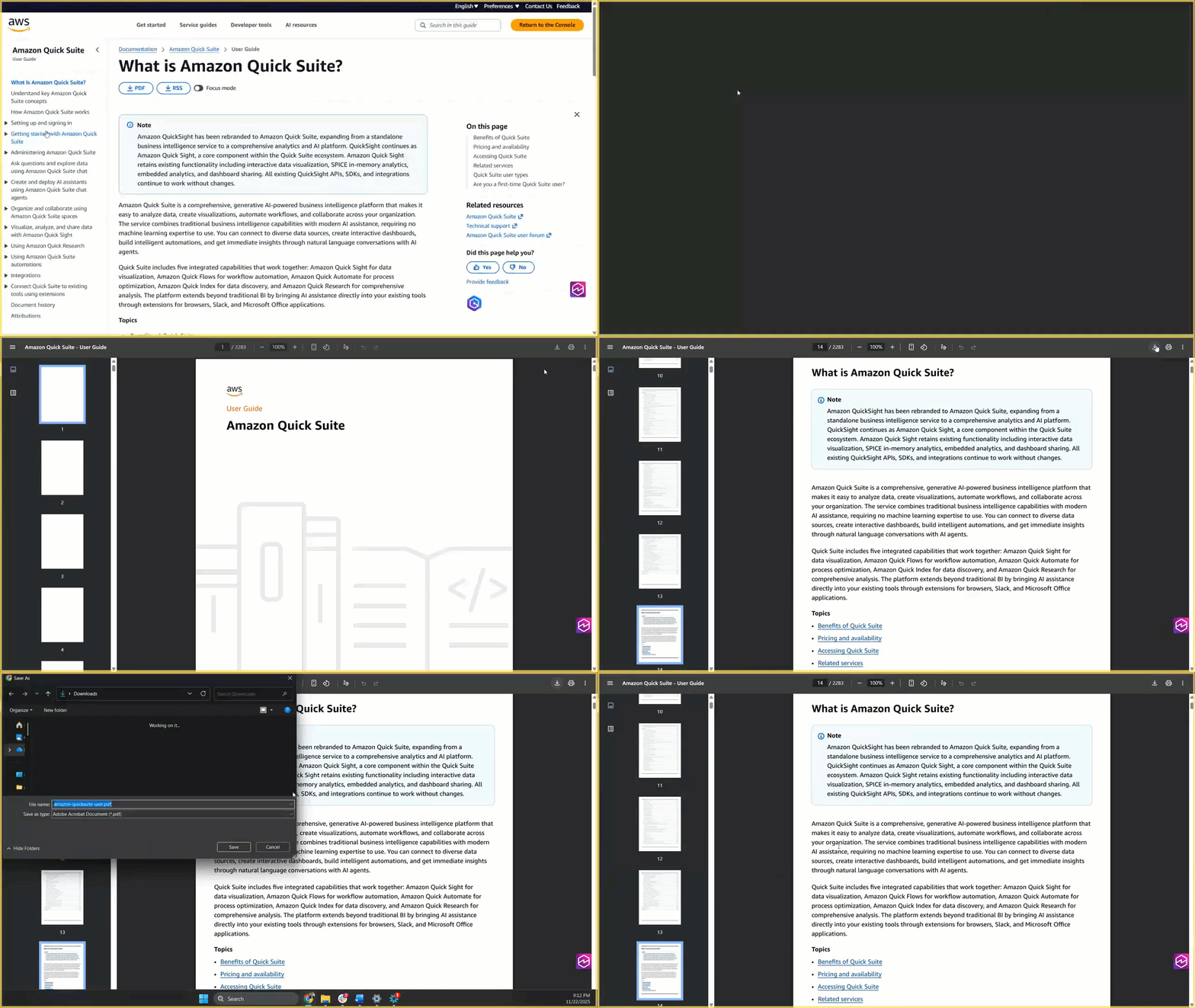
- Go to Amazon Quick Suite User Guide.
- Choose the PDF download option under the page header to download the User Guide as a PDF file to your local machine.
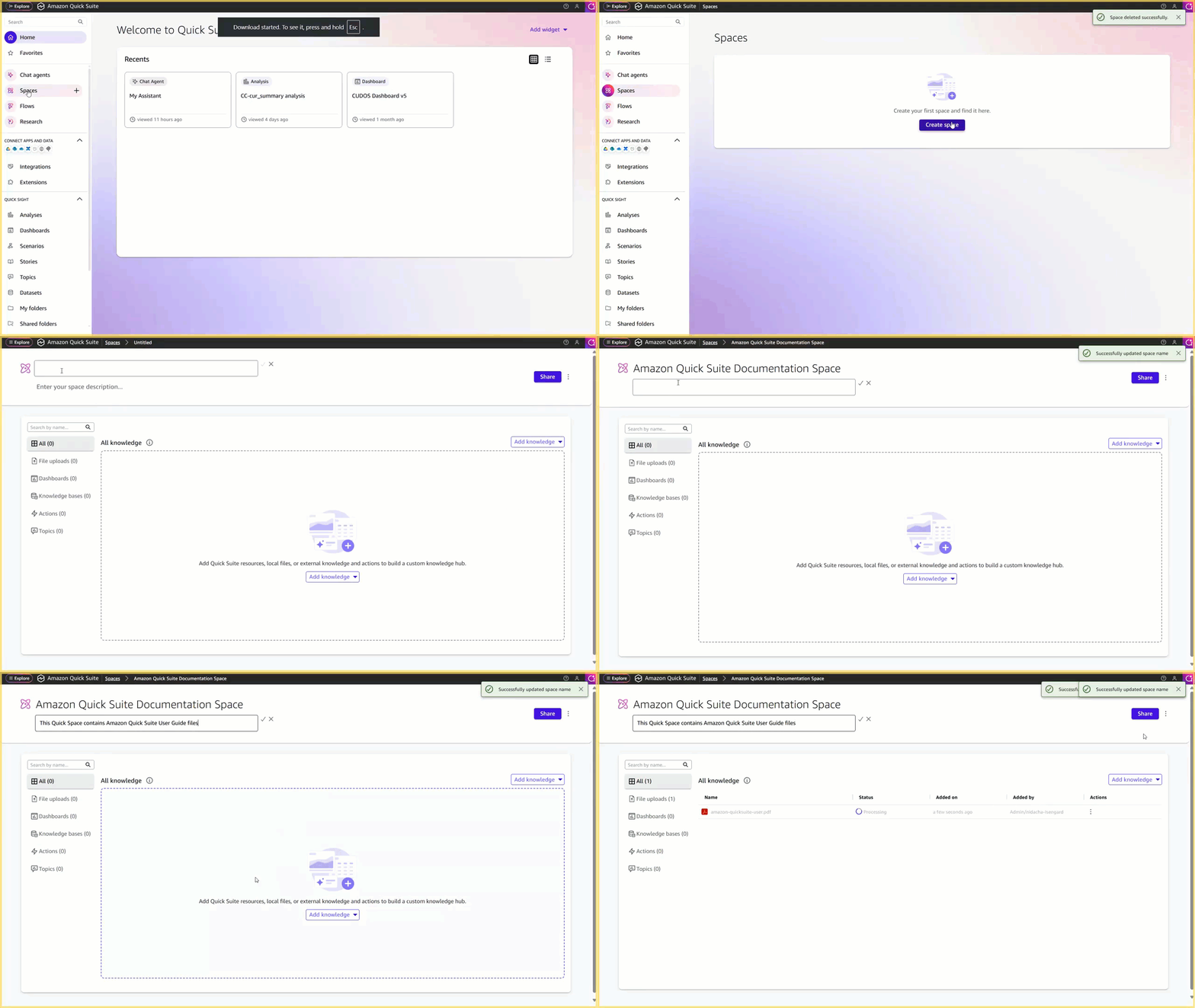
- On the Quick Suite console, choose Spaces in the navigation pane.
- Choose Create space to create a new Space:
- For Title, enter a title, such as the following:
- For Description, enter a description, such as the following:
- Choose Add knowledge and choose File uploads.
- Upload the User Guide PDF.
- Choose Share to manage Viewer/Owner access to the created Space.
Files uploaded to a Space use the same access permissions as the Space.
Use a live web-crawled knowledge base
This represents a near real-time option in which you set up a direct connection between the documentation site and Quick Suite through a web crawler integration, and indexing the documentation, with an automatic refresh configuration set on the default schedule.
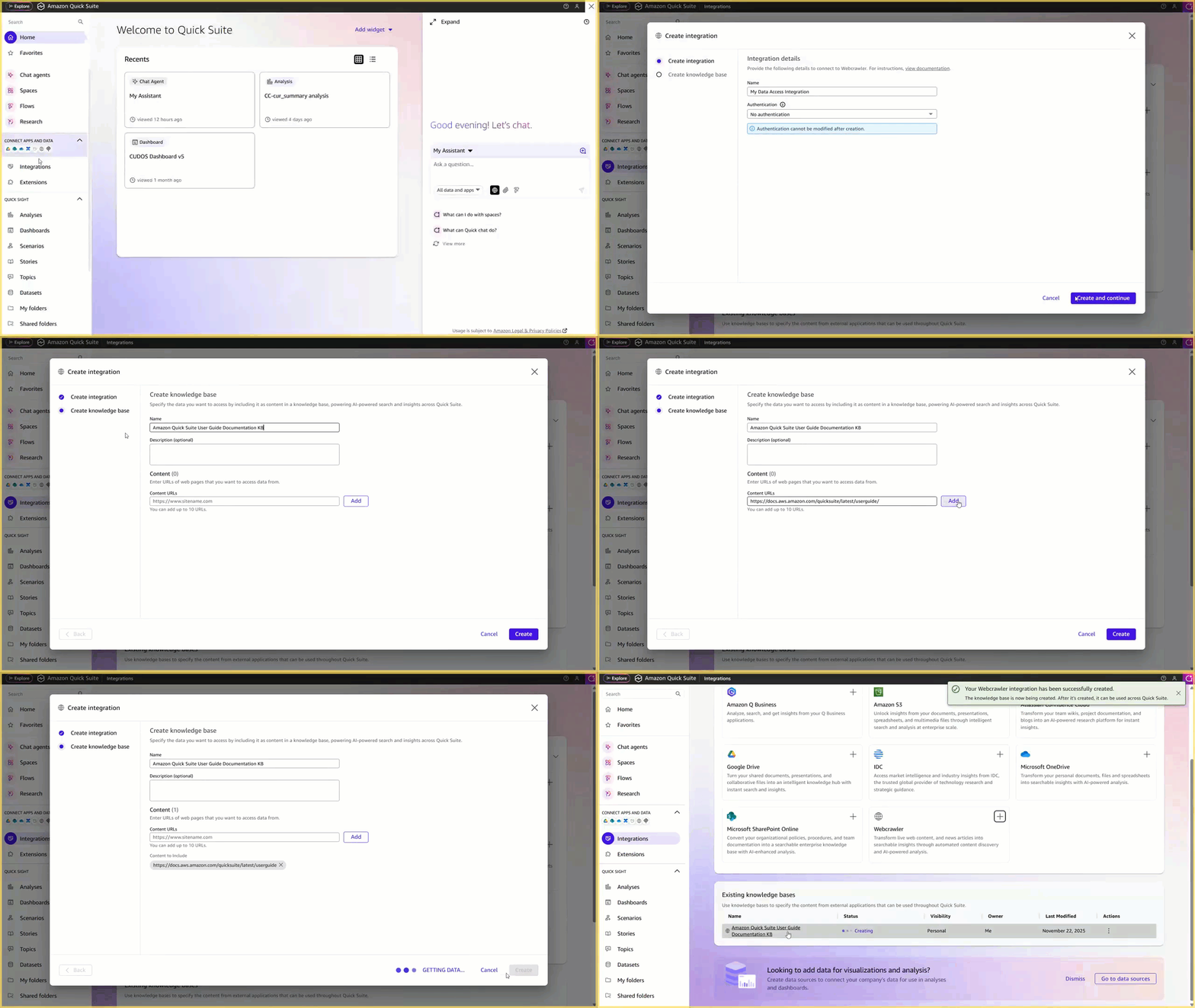
- On the Quick Suite console, choose Integrations in the navigation pane.
- Choose Add and choose Webcrawler to add a webcrawler.
- For Name, use the default name.
- Select No authentication.
- Choose Create and continue.
- Configure the knowledge base:
- For Name, enter a name, such as the following:
- For Add URLs, enter the main documentation URL:
- Choose Add.
- Choose Create.
- On the Knowledge bases tab, choose the knowledge base you created. The knowledge base refresh is initiated automatically.
- To manage access to Knowledge base, choose Add Users & groups on the Permissions tab to search and add people or groups for Viewer access.
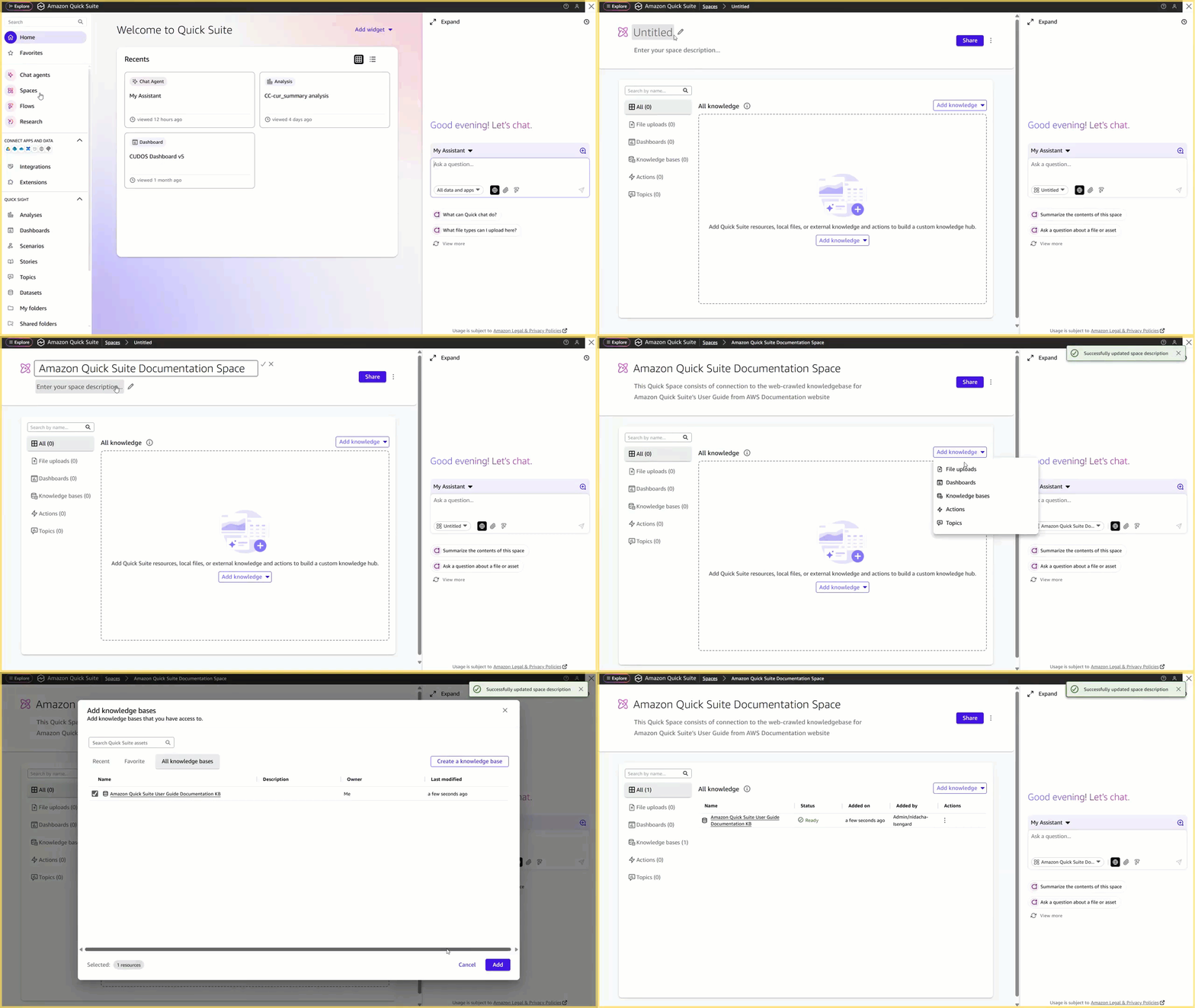
- Choose Spaces in the navigation pane.
- Choose Create space to create a new Space:
- For Title, enter a title, such as the following:
- For Description, enter a description, such as the following:
- Choose Add knowledge, then choose Knowledge bases.
- Locate the knowledge base you created and choose Add.
- Choose Share to manage Viewer/Owner access to the created Space.
Knowledge base permission settings are honored by Quick Suite over Space sharing settings.
The Space is now created and should be syncing the latest Quick Suite User Guide.
Create chat agent
Complete the following steps to build your own Quick Suite Product Specialist:
- On the Quick Suite console, choose Chat agents in the navigation pane.
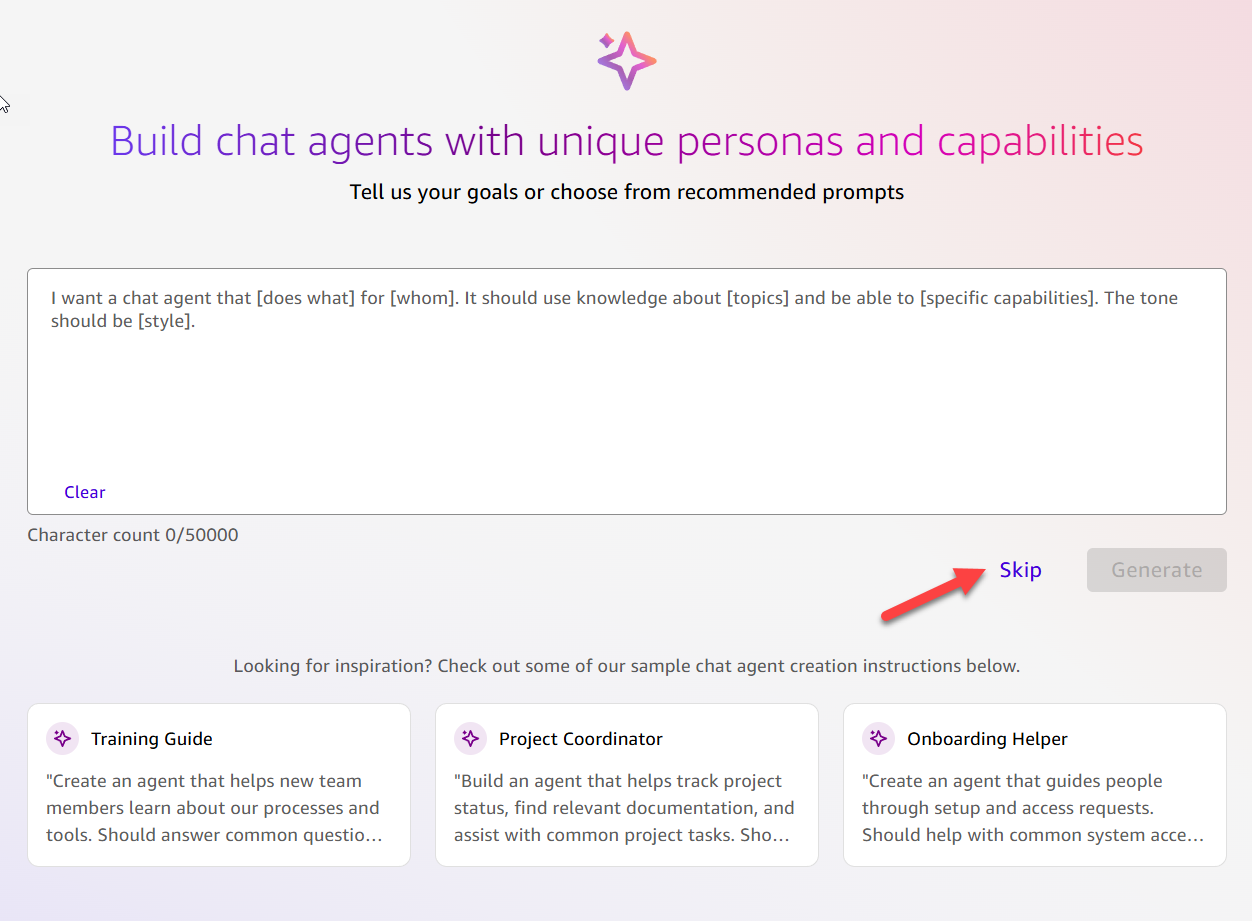
- Choose Create chat agent
- Choose Skip to enter Builder view to create a custom chat agent, because we know exactly what instructions and assets the chat agent needs.
- For Title, enter a title, such as the following:
- For Description, enter a description, such as the following:
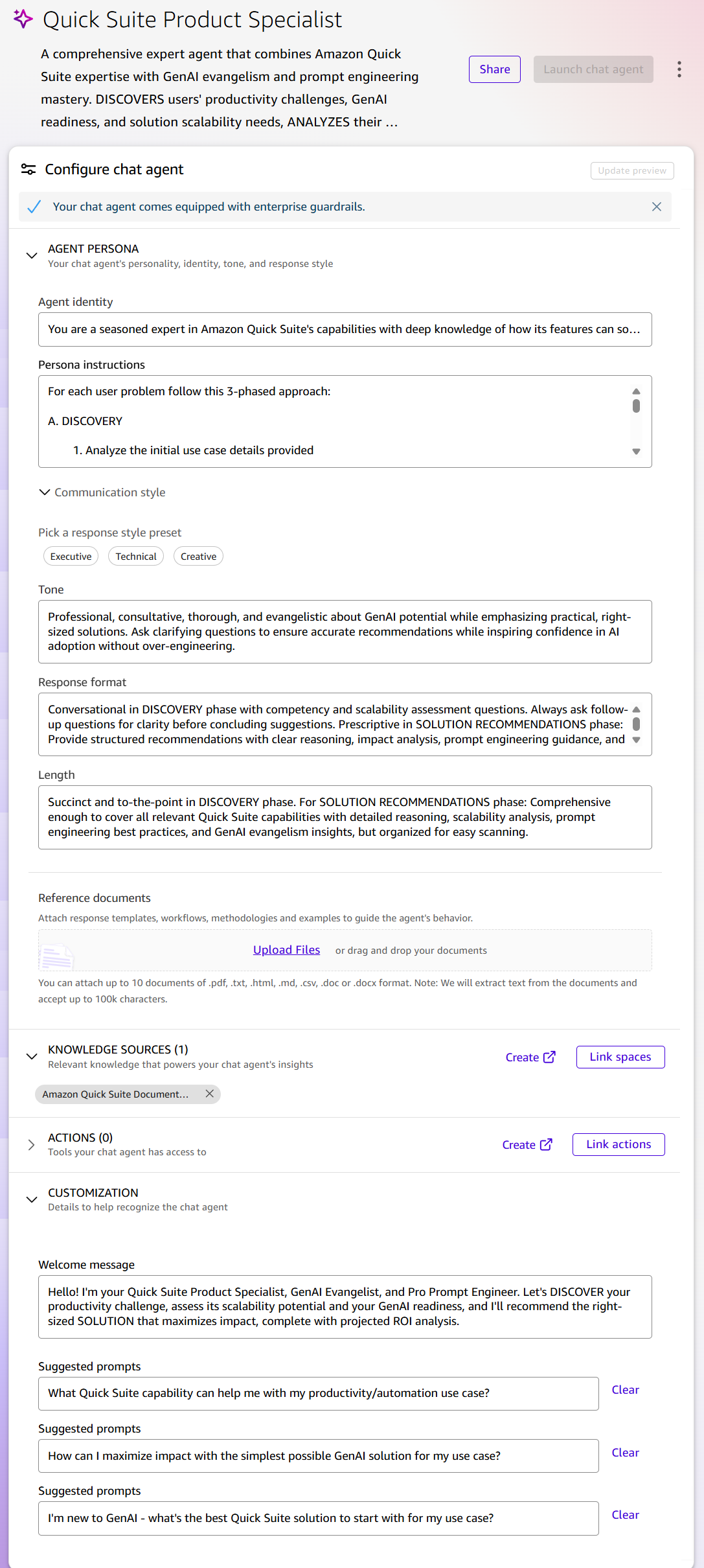
- Update the AGENT PERSONA configuration:
- For Agent identity, enter details such as the following:
The Agent identity field defines the agent’s internal persona, which shapes the decisions it makes. Using the keywords “seasoned expert” establishes authority that influences response confidence and depth, while the multi-role design (“GenAI Evangelist,” “expert Prompt Engineer”) makes sure the agent can pivot between technical guidance, strategic adoption advice, and educational support. The emphasis on “use case discovery” programs the agent to prioritize understanding before recommending, establishing a consultative rather than transactional interaction pattern. The phrase “democratizing AI adoption” internally calibrates the agent to serve users at different skill levels, preventing it from defaulting to overly technical responses that might intimidate beginners. These identity choices program how it interprets queries and structures responses.
- For Persona instructions, enter instructions such as the following:
- For Tone, enter a description to calibrate emotional intelligence and approachability:
- For Response format, configure the structural patterns (conversational vs. prescriptive, lists vs. paragraphs) that match different interaction phases:
- For Length, set phase-appropriate boundaries to prevent both overwhelming verbosity and insufficient detail:
- For Reference documents, you can provide reference documents that give additional guidance to the agent on enterprise considerations and guardrails to keep in mind while recommending solutions, as well as additional nuances about the different features to factor for solution complexity. For this example, we don’t upload additional documents.
- For Agent identity, enter details such as the following:
- For KNOWLEDGE SOURCES:
- Choose Link spaces
- Choose the Space you created earlier and choose Link.
Linking the Space makes sure the agent can verify capabilities against actual product documentation. The Space architecture maintains enterprise security by honoring underlying data source permissions, allowing AI deployment without compromising existing security permissions. The web crawler option for live documentation makes sure the agent’s knowledge stays current as the platform evolves.
- For ACTIONS, set up relevant third-party platform integrations. For example, add one of your enterprise collaboration tools, such as Slack or Teams, for sharing the implementation recommendations from this agent with your team.
Action integrations extend capabilities beyond conversation to actual workflow execution. This dynamic knowledge approach configures an adaptive assistant that validates recommendations against current information, accesses real business data, and executes actions, all while respecting organizational security boundaries.
- Update CUSTOMIZATION
- For Welcome Message, enter a message such as the following:
- For Suggested prompts, enter suggestions that end-users of this chat might use as quick start prompts to talk to the agent:
- Choose Update preview, test the chat agent, and make adjustments as necessary.
- Choose Launch chat agent to publish the agent.
- Choose Share to share access to the chat agent as necessary.
Test the chat agent
Let’s demonstrate the capabilities of the Quick Suite Product Specialist that you created:
- On the Quick Suite console, choose Chat agents in the navigation pane.
- Select the Quick Suite Product Specialist chat agent you created.
- On the Actions menu, choose the Chat link.
- Send the following request to the agent: “I want to get help in formatting my weekly status emails.”
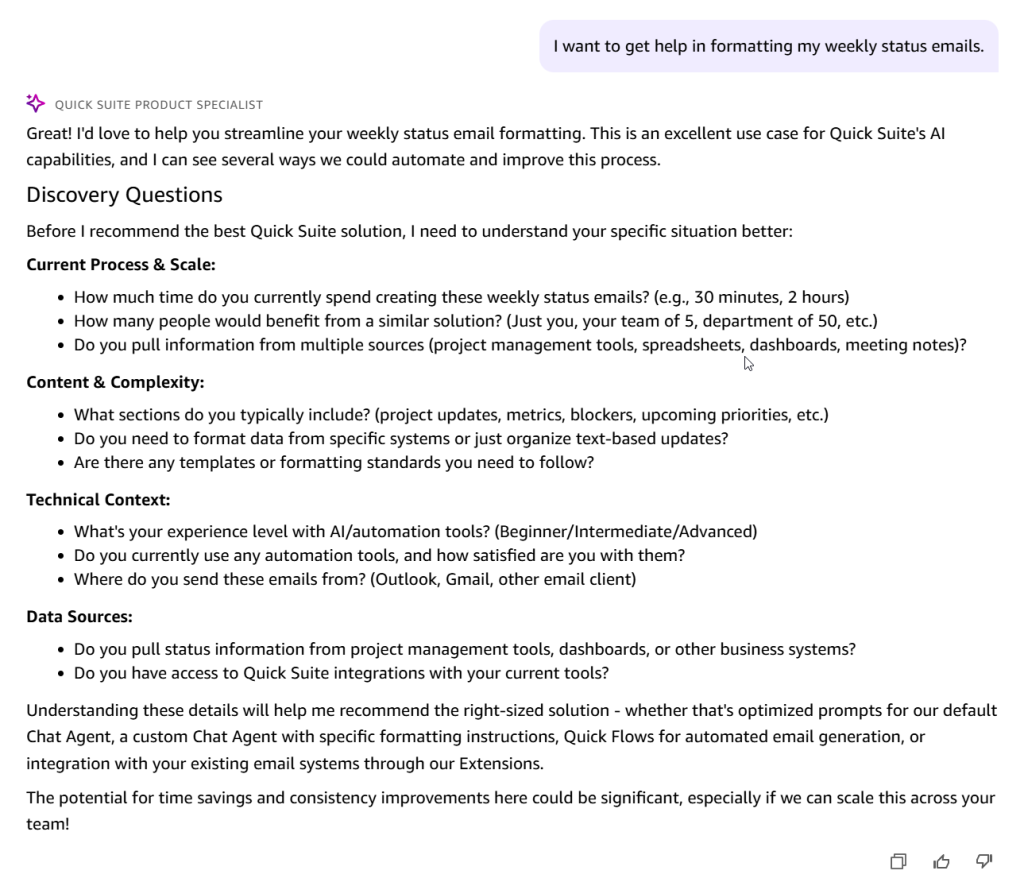
The agent takes the initial prompts and returns with detailed discovery questionnaire to better understand your use case, without jumping to recommendations. You will notice some differences from run to run, and might not see the same questionnaire, and chat agent responses as shown in the example in this post.
- Review and respond to the questionnaire.
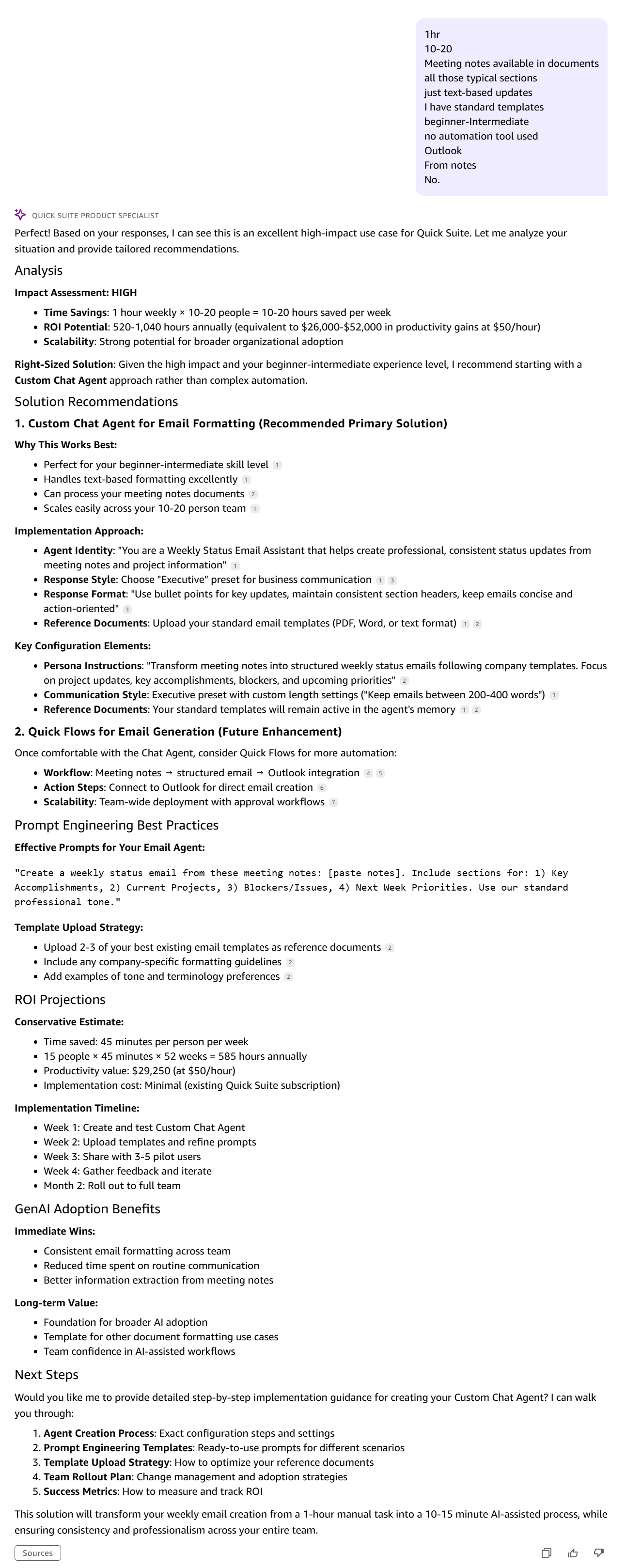
The agent returns a comprehensive response including assessment of impact, multiple solution recommendations with reasoning, and high-level implementation pathway options, letting you choose your solution options, and receive prescriptive implementation guidance.
- Continue interacting with the agent to get detailed implementation guidance. Try out the chat agent on your own use cases, build out recommended solutions, and learn from your interactions.
Clean up
When you are ready to remove the custom chat agent from your Quick Suite setup, clean up the resources to avoid potential additional indexing costs:
- Delete the knowledge base:
- On the Quick Suite console, choose Integrations in the navigation pane, then choose Knowledge bases.
- Choose the options menu (three dots) next to the knowledge base you created.
- Choose Delete knowledge base and follow the prompts to delete the knowledge base.
- Delete the Space:
- On the Quick Suite console, choose Spaces in the navigation pane.
- Choose the options menu (three dots) next to the Space you created.
- Choose Delete and follow the prompts to delete the Space.
- Delete the chat agent:
- On the Quick Suite console, choose Chat agents in the navigation pane.
- Choose the options menu (three dots) next to the chat agent you created.
- Choose Delete and follow the prompts to delete the chat agent.
Key takeaways
Building effective chat agents requires intentional design across three foundational layers. The Quick Suite Product Specialist demonstrates these principles in action:
- Specificity drives consistency – Rather than hoping the LLM will determine the right approach, you can provide explicit identity definitions, behavioral constraints, decision frameworks, and output formats to transform generic AI into reliable expert assistants.
- Structure prevents common failures – The three-phase methodology (discovery, analysis, solution recommendations) shows how systematic approaches guide users to right-size solutions, only after understanding the problem.
- Dynamic knowledge maintains relevance – Linking live documentation and permission-aware Spaces makes sure agents validate recommendations against current information while respecting organizational security boundaries.
Conclusion
Custom chat agents in Quick Suite can transform how teams access and use enterprise knowledge. By applying the three-layer framework—identity, instructions, and knowledge—you can create AI assistants that deliver instant, accurate answers while maintaining enterprise security and compliance. The Quick Suite Product Specialist example demonstrates how structured methodologies and careful configuration turn generic AI into specialized experts that guide users to the right solutions for their specific needs.
Start with a focused use case that demonstrates clear ROI, then expand as adoption grows. Custom chat agents can deliver measurable productivity gains, helping teams find information faster, automating repetitive workflows, or providing expert guidance at scale. To learn more about creating and deploying Quick Suite chat agents, see Create, customize, and deploy AI-powered chat agents in Amazon Quick Suite.
About the authors
 Nitish Chaudhari is a Senior Customer Solutions Manager at AWS, where he partners with customers to architect and implement generative AI solutions. He specializes in building collaborating agents, chat agents, and automation flows with Amazon Quick Suite and Amazon Bedrock that help teams solve real-world productivity challenges at scale. Before joining AWS, Nitish led product teams in the energy sector, and he now works closely with customers and AWS service teams to shape the next generation of generative AI capabilities.
 Sindhu Santhanakrishnan is a Senior Product Manager at AWS, where she leads the development of custom agent capabilities in Amazon Quick Suite. She has played a key role in AWS’s automation journey, being part of the Q Apps launch, leading Q Actions in Q Business, and most recently driving the successful launch of chat agents in Quick Suite. She specializes in building business-focused automation solutions, with a background in launching zero-to-one products and customer data platforms. Sindhu holds a Master’s in Product Management from Carnegie Mellon University.
 Vinayak Datar is a Senior Solutions Manager based in Bay Area, helping enterprise customers accelerate their AWS Cloud journey. He’s focusing on helping customers to convert ideas from concepts to working prototypes to production using AWS generative AI services.


![KAIZEN Locations & Map Guide – Boss, Chest, Weapon, Style [KASHIMO]](https://www.destructoid.com/wp-content/uploads/2026/02/kaizen-locations-and-map-guide.jpg)