

















Performance Guide for Samson
It has been two days since we dropped Samson, and it’s been absolutely magical to see everyone play the game and hear about all of your experiences. Thank you! We’ve been reading through your feedback about the game, and one thing that we have seen come up consistently is performance related questions or issues. So, we thought it would be helpful to put together a quick guide. If you run into performance problems, there are often a few things you can try on your end that may significantly improve your experience.General Performance and StabilitySomething that can immediately help for crashes and otherwise, is to always make sure to update your graphics drivers before playing. If you experience stuttering, restarting your computer or resetting the video drivers (Windows Key + Ctrl + Shift + B) might help. If a computer has been running for more than a day, we have noticed issues where calls to drivers take longer and longer. This is due to driver issues or other software that has reserved video memory, and it shows up in the game as stuttering. Restarting the drivers solves these problems. System Requirements & SetupThe game requires a DX12-capable discrete video card and 6 GB of video memory on low-quality settings at 1920x1080 output resolution.Make sure the game is installed on an SSD drive. As an open-world game, Samson is constantly streaming data when you are moving. If the game is installed on a hard drive rather than an SSD, streaming will simply not be fast enough, and the game will pause (i.e. stutter). It does this in order to allow collisions to load, preventing the player from falling through the world.Here's our Minimum required specs:Requires a 64-bit processor and operating systemOS: Windows 10/11Processor: Intel Core i5-10505 / AMD Ryzen 5 3600Memory: 16 GB RAMGraphics: Nvidia® 1070 GTX 8 GB / AMD Radeon™ RX 5600 6 GBDirectX: Version 12Storage: 15 GB available spaceAdditional Notes: This game requires a SSD hard driveCPU Performance & BottlenecksSamson is CPU-intensive, especially when driving fast around the world. This is because we constantly need to stream in new geometry, vehicles, and characters, and destroy the things you leave behind. Most players we have seen are CPU-limited, and when CPU-limited, the video settings do not matter much. Make sure you do not have other CPU-intensive programs running in the background. We highly recommend using Frame Generation if you are CPU-limited. If you do not see Frame Generation in the menus and have a graphics card that supports it, make sure you are running with an updated driver.We have three CPU-related performance settings in the Gameplay Menu. Cloth Simulation, Hair Simulation, and Animation Quality. We have also seen cases where a graphics driver update caused Windows to not report the dedicated graphics card as available to the game on boot, causing a fallback to some other available graphics card. For example, the integrated graphics in the CPU could be selected, which will most likely result in terrible performance and crashes. A restart has solved these issues.The game runs a quick GPU benchmark on first boot to configure quality settings. This does not however take resolution into account. If running on a high resolution output device, make sure to tweak Video > Upscaling > Quality to balance rendered pixels.DLSS 4.5Selected by default on Nvidia RTX graphics cards. Frame Generation is available for GeForce RTX 40 Series cards and newer.FSR 3 & 4Selected by default on AMD graphics cards and will have Frame Generation available. FSR4 will be used for AMD Radeon RX 9000 Series or newer, otherwise FSR3 will be used. Vertical SynchronizationVertical Synchronization can be toggled in Fullscreen and Windowed Fullscreen. Having this enabled will increase latency and disable Variable Refresh Rate. Keep this disabled with a VRR enabled output device, instead Frame Rate Limit settings can be used if limits are needed.When Frame Generation is running, additional restrictions apply. Specifically, when DLSS Frame Generation is running, the game cannot control the synchronization interval; instead, it is controlled by the frame generation implementation. Forcing VSync on from the Nvidia App could work to circumvent this.Running with VSync and Frame Generation enabled could lead to increased frame pacing issues, especially when MFG is enabled.Hair StrandsHair Strands can be enabled for Samson at a GPU performance & memory cost, this is currently always off by default.Post ProcessingWhile these post-processing options will have a GPU performance impact, they are mostly provided to disable unwanted and/or distracting effects.We genuinely hope you could learn something from this post, and that it could help with any issues you may be having performance-wise. Thank you again for playing the game and providing such thorough feedback, it's incredibly helpful for the team to continue improving on the game and experience for all of you. In order to join th

It has been two days since we dropped Samson, and it’s been absolutely magical to see everyone play the game and hear about all of your experiences. Thank you!
We’ve been reading through your feedback about the game, and one thing that we have seen come up consistently is performance related questions or issues. So, we thought it would be helpful to put together a quick guide. If you run into performance problems, there are often a few things you can try on your end that may significantly improve your experience.
Something that can immediately help for crashes and otherwise, is to always make sure to update your graphics drivers before playing.
If you experience stuttering, restarting your computer or resetting the video drivers (Windows Key + Ctrl + Shift + B) might help. If a computer has been running for more than a day, we have noticed issues where calls to drivers take longer and longer. This is due to driver issues or other software that has reserved video memory, and it shows up in the game as stuttering. Restarting the drivers solves these problems.
The game requires a DX12-capable discrete video card and 6 GB of video memory on low-quality settings at 1920x1080 output resolution.
Make sure the game is installed on an SSD drive. As an open-world game, Samson is constantly streaming data when you are moving. If the game is installed on a hard drive rather than an SSD, streaming will simply not be fast enough, and the game will pause (i.e. stutter). It does this in order to allow collisions to load, preventing the player from falling through the world.
Here's our Minimum required specs:
Requires a 64-bit processor and operating system
OS: Windows 10/11
Processor: Intel Core i5-10505 / AMD Ryzen 5 3600
Memory: 16 GB RAM
Graphics: Nvidia® 1070 GTX 8 GB / AMD Radeon™ RX 5600 6 GB
DirectX: Version 12
Storage: 15 GB available space
Additional Notes: This game requires a SSD hard drive
Samson is CPU-intensive, especially when driving fast around the world. This is because we constantly need to stream in new geometry, vehicles, and characters, and destroy the things you leave behind. Most players we have seen are CPU-limited, and when CPU-limited, the video settings do not matter much. Make sure you do not have other CPU-intensive programs running in the background. We highly recommend using Frame Generation if you are CPU-limited. If you do not see Frame Generation in the menus and have a graphics card that supports it, make sure you are running with an updated driver.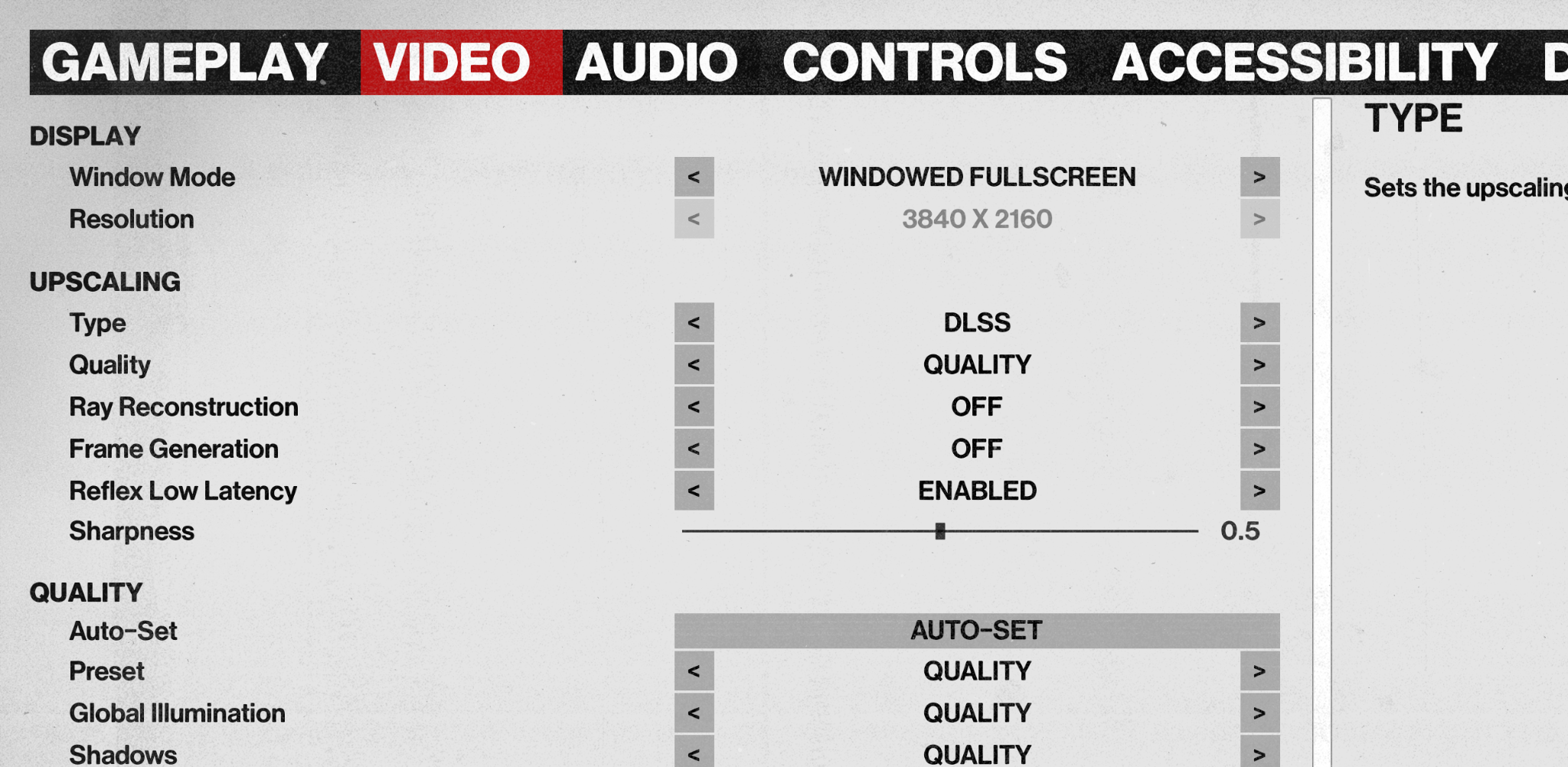
We have three CPU-related performance settings in the Gameplay Menu. Cloth Simulation, Hair Simulation, and Animation Quality.
We have also seen cases where a graphics driver update caused Windows to not report the dedicated graphics card as available to the game on boot, causing a fallback to some other available graphics card. For example, the integrated graphics in the CPU could be selected, which will most likely result in terrible performance and crashes. A restart has solved these issues.
The game runs a quick GPU benchmark on first boot to configure quality settings. This does not however take resolution into account. If running on a high resolution output device, make sure to tweak Video > Upscaling > Quality to balance rendered pixels.
Selected by default on Nvidia RTX graphics cards. Frame Generation is available for GeForce RTX 40 Series cards and newer.
Selected by default on AMD graphics cards and will have Frame Generation available. FSR4 will be used for AMD Radeon RX 9000 Series or newer, otherwise FSR3 will be used.
Vertical Synchronization can be toggled in Fullscreen and Windowed Fullscreen. Having this enabled will increase latency and disable Variable Refresh Rate. Keep this disabled with a VRR enabled output device, instead Frame Rate Limit settings can be used if limits are needed.
When Frame Generation is running, additional restrictions apply. Specifically, when DLSS Frame Generation is running, the game cannot control the synchronization interval; instead, it is controlled by the frame generation implementation. Forcing VSync on from the Nvidia App could work to circumvent this.
Running with VSync and Frame Generation enabled could lead to increased frame pacing issues, especially when MFG is enabled.
Hair Strands can be enabled for Samson at a GPU performance & memory cost, this is currently always off by default.
While these post-processing options will have a GPU performance impact, they are mostly provided to disable unwanted and/or distracting effects.
We genuinely hope you could learn something from this post, and that it could help with any issues you may be having performance-wise. Thank you again for playing the game and providing such thorough feedback, it's incredibly helpful for the team to continue improving on the game and experience for all of you.
In order to join the community, talk everything Samson and report bugs or issues, join our Discord server: https://discord.com/invite/xPHpQgKUwG
We're also active right here in the Steam Discussion forums.