
















Amazon Quick ARNs: Cross-account migration and namespace permissions
In this post, we cover the structure of Amazon Quick ARNs and provide a practical mental model for working with them. By the end, you can look at an ARN and immediately understand what it means for your migration strategy, diagnose permission issues faster, and design multi-tenant architectures with confidence.
You migrate dashboards from development to production, but the permissions don’t carry over. You share a dashboard with your Finance team, but they keep getting “access denied.” You set up namespaces for multi-tenant isolation, and the same username works in one namespace but not another.
These are real tasks that Amazon Quick administrators tackle regularly, and getting them right requires a clear understanding of how Amazon Resource Names (ARNs) work.
Amazon Quick is a unified, AI-powered business intelligence service that helps you build interactive dashboards, query data in natural language, automate workflows, and embed analytics directly into applications. As you scale your deployments across multiple AWS accounts and namespaces, understanding how Amazon Quick identifies and secures resources through ARNs becomes critical.
In this post, we cover the structure of Amazon Quick ARNs and provide a practical mental model for working with them. By the end, you can look at an ARN and immediately understand what it means for your migration strategy, diagnose permission issues faster, and design multi-tenant architectures with confidence.
A note on naming
Amazon Quick is the service that you use today, but ARNs and API endpoints still use “quicksight” as the service identifier. We keep this for compatibility with existing AWS Identity and Access Management (IAM) policies, automation, and integrations across customer environments.
Throughout this post, you see ARNs like:
The “quicksight” portion refers to the Quick Sight capability within Amazon Quick. Existing code, IAM policies, and CLI commands continue to work without modification for current implementations. For more information, see Amazon Quick Sight Resource ARNs.
Think of ARNs as postal addresses
Just as “123 Main Street, Springfield, MA” uniquely identifies a location, an ARN uniquely identifies a resource in AWS. The following is a visual representation of the components of an ARN:
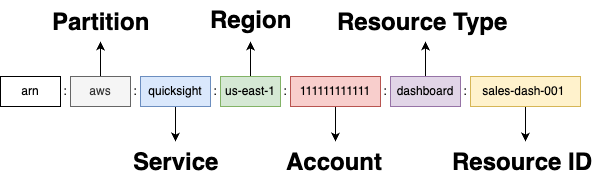
Here’s how the components map:
| Component | Analogy | What it represents |
| aws | Planet | AWS partition- aws / aws-cn / aws-gov-us |
| quicksight | Country | The Service within an AWS partition |
| us-east-1 | State | AWS Region |
| 111111111111 | City | AWS Account ID |
| dashboard | Street | Resource Type |
| 04f736b4-bd1b-… | House number | Unique Resource ID |
The account ID is part of the address. Move to a new city, and your address changes, even if you get a house with the same street number. The same applies to Amazon Quick resources. Migrate a dashboard from your development account to production, and the ARN changes because the account ID is different.
What this looks like in practice: Dev/QA/Prod
AnyCompany has three AWS accounts for their Amazon Quick deployment:
- Development (Account: 111111111111): Where analysts build new dashboards.
- QA (Account: 222222222222): Where dashboards are tested before release.
- Production (Account: 333333333333): Where business users access approved dashboards.
Saanvi, a data analyst at AnyCompany, builds a sales dashboard in Development:
She uses the Asset Bundle APIs to migrate it to QA. The dashboard now has a new ARN:
What changed and what didn’t:
- Account ID changed (111111111111 → 222222222222).
- Resource ID stayed the same (sales-dash-001).
- Region stayed the same (us-east-1).
The dashboard in QA is a different resource than the one in Development, even though they share the same resource ID. Different ARNs mean different addresses in the AWS universe.
Why permissions don’t transfer during migration
In development, Saanvi granted view access to her team:
After migration to QA, the dashboard has no permissions. Amazon Quick stores permissions as relationships between resource ARNs and principal ARNs. The original permission said “the DataAnalysts group in account 111111111111 can view this dashboard.” But in QA:
- The dashboard has a new ARN (different account).
- The DataAnalysts group in account 111111111111 doesn’t exist in account 222222222222.
- A DataAnalysts group in QA has a different ARN (it references QA’s account ID).
Permissions don’t migrate because they reference account-specific ARNs. You must re-establish permissions in each target environment, either during import or after.
How the dependency chain works
Saanvi’s dashboard doesn’t exist in isolation. It depends on:
- A dataset (sales-data) that transforms the raw data.
- A data source (sales-db-connection) that connects to the database.
Each has its own ARN, and the dashboard internally references them:
When the Asset Bundle APIs import the bundle into the target account, they automatically update these internal ARN references to reflect the new account ID:
The import process handles this ARN transformation automatically, but only for assets included in the bundle. If you import only the dashboard without its dataset and data source dependencies, the dashboard references resources that don’t exist in the target account.
Always include all dependencies in your export bundle (use IncludeAllDependencies=True). The import process updates internal ARN references automatically, but only for assets that are part of the bundle.
Reusing existing resources with OverrideParameters
A common scenario: QA already has a data source configured for the QA database. You don’t want a duplicate. You want the imported dashboard to use the existing connection.
OverrideParameters in the StartAssetBundleImportJob API handles this. It lets you override data source connection parameters, credentials, and resource ID behavior during import:
Note the following about OverrideParameters:
- ResourceIdOverrideConfiguration controls whether imported resource IDs get a prefix (useful for avoiding ID conflicts).
- With DataSources, you can override connection parameters and credentials per data source.
- Credential methods: You can use CredentialPair (username/password), CopySourceArn (copy from an existing data source), or SecretArn (reference an AWS Secrets Manager secret directly). Use SecretArn when your organization manages database credentials in AWS Secrets Manager:
You have full control over how ARN references are resolved during migration. Preserve IDs, map to existing resources, or reconfigure connections, all through the import configuration.
Namespaces: How identity works in multi-tenant environments
Amazon Quick namespaces provide multi-tenant isolation within a single AWS account. They’re commonly used by:
- Software as a service (SaaS) providers who embed Amazon Quick for multiple customers.
- Enterprises with strict departmental boundaries.
- Companies that need to isolate user populations.
Here’s the concept that matters most: namespaces affect principal ARNs, not asset ARNs.
A multi-tenant example
AnyCompany is a SaaS company providing analytics to their customers. They use a single Amazon Quick account with namespaces for isolation:
Look at the user “alice” in HR:
And the “Analysts” group in HR:
The namespace (HR) is embedded in the ARN. Compare this to asset ARNs, which have no namespace component:
Assets exist outside namespaces. Users and groups exist inside them. This is what supports cross-namespace sharing: a single dashboard can be shared with users from multiple namespaces. But it also means that you must always specify full principal ARNs. The namespace is part of the identity.
Same username, different people
Consider two namespaces in the same account: the HR namespace and the Marketing namespace. Both have a user named “nikki_wolf”:
These are completely different principals. They share a username, but their ARNs are different because the namespace is different.
Grant dashboard access to HR’s nikki_wolf, and Marketing’s nikki_wolf still can’t see it. Different ARNs, different identities.
The same username in different namespaces represents completely different principals. Always use the full principal ARN (including namespace) when granting or troubleshooting permissions.
Cross-namespace sharing
AnyCompany wants to share a platform-wide announcement dashboard with all customers:
A single dashboard (one ARN) has permissions granted to principals from three different namespaces. The dashboard doesn’t belong to any namespace. It exists at the account level and can be shared with anyone.
Dashboards and other assets are namespace-independent. You can share a single asset with principals from any number of namespaces by granting permissions to their full principal ARNs.
Wildcard permissions
Amazon Quick supports wildcard principal ARNs for namespace-scoped grants:
This grants access to all users in the HR namespace, current and future:
Keep the following in mind:
- The wildcard applies only within the specified namespace. Marketing users won’t gain access.
- Wildcards are also supported in OverridePermissions during asset bundle import, so you can set broad permission patterns as part of your migration pipeline.
- Wildcards work best for read-only access patterns. For write or administrative access, explicit group-based grants are preferred.
Wildcards grant access to all current and future users in a namespace. They simplify broad read access but should be used carefully for write permissions.
Putting it all together: end-to-end migration
Here’s a complete workflow that combines everything in the preceding sections.
Scenario: AnyCompany is migrating their Sales Analytics suite from Development to Production. They have:
- Three dashboards.
- Five datasets.
- Two data sources (one Amazon Athena, one Amazon Redshift).
- Users in two namespaces (SalesTeam, Executives).
Step 1: Export from development
Use the StartAssetBundleExportJob API to package the dashboards and all their dependencies (datasets, data sources) into a portable bundle. Setting IncludeAllDependencies=True supports capturing the full dependency tree without manually tracking each referenced resource.
Step 2: Import to production with overrides
Production already has data sources configured. Map the imported assets to use them, and set permissions during import:
Using OverridePermissions alongside OverrideParameters sets permissions during import rather than as a separate step, reducing the window where resources exist without proper access controls.
Step 3: Grant additional granular permissions
Wildcards in Step 2 gave broad read access to the entire SalesTeam namespace. For role-specific access, such as limiting certain dashboards to the Leadership group within the Executives namespace, grant permissions individually after import:
ARN transformation summary
| Asset | Development ARN | Production ARN |
| Dashboard | …111111111111:dashboard/sales-overview | …333333333333:dashboard/sales-overview |
| Dataset | …111111111111:dataset/sales-data | …333333333333:dataset/sales-data |
| Data Source | …111111111111:datasource/dev-athena-source | …333333333333:datasource/dev-athena-source |
Resource IDs stayed the same. Account IDs changed. The import process updated internal references automatically. You set permissions through OverridePermissions and follow-up grants.
Use OverrideParameters to reconfigure data source connections and OverridePermissions to set access controls during import. This gives you a complete, repeatable migration in a single API call.
Quick reference: ARN formats
Note: ARNs use the “quicksight” as identifier for backward compatibility.
Asset ARNs (no namespace)
| Resource Type | ARN Format |
| Dashboard | arn:aws:quicksight:{region}:{account}:dashboard/{id} |
| Analysis | arn:aws:quicksight:{region}:{account}:analysis/{id} |
| Dataset | arn:aws:quicksight:{region}:{account}:dataset/{id} |
| Data Source | arn:aws:quicksight:{region}:{account}:datasource/{id} |
| Theme | arn:aws:quicksight:{region}:{account}:theme/{id} |
| Folder | arn:aws:quicksight:{region}:{account}:folder/{id} |
| Topic | arn:aws:quicksight:{region}:{account}:topic/{id} |
Principal ARNs (with namespace)
| Principal Type | ARN Format |
| User | arn:aws:quicksight:{region}:{account}:user/{namespace}/{username} |
| Group | arn:aws:quicksight:{region}:{account}:group/{namespace}/{groupname} |
| Wildcard (all users in namespace) | arn:aws:quicksight:{region}:{account}:user/{namespace}/* |
Utility functions
The following Python helper functions make it easier to parse, transform, and construct ARNs programmatically. Use them in your migration scripts and CI/CD pipelines to avoid manual string manipulation errors.
Troubleshooting guide
The following sections cover the most common ARN-related issues you encounter during migration and permission management, along with diagnostic steps to resolve them.
“Resource not found” after migration
Symptom: Dashboard loads but shows “Dataset not found” errors.
Cause: The dashboard references a dataset ARN from the source account, or dependencies were not included in the import bundle.
Fix: Verify all dependencies were included in the export (use IncludeAllDependencies=True), or use ResourceIdOverrideConfiguration to map to existing target resources. Confirm the import job completed successfully by calling DescribeAssetBundleImportJob.
“Access denied” for a user who should have access
Symptom: A user can’t see a dashboard that was shared with them.
Diagnosis checklist:
- What namespace is the user in?
- What principal ARN did you grant permissions to?
- Do they match?
- Is the resource in a restricted folder?
Restricted folders: If the resource is in a restricted folder, you can’t share it directly regardless of ARN correctness. You can access resources in restricted folders only through container permissions within the restricted folder hierarchy. The ARN and permissions might look correct, but the folder-level restriction takes precedence.
“Invalid principal” when granting permissions
Symptom: API returns an error when trying to grant permissions.
Cause: The principal ARN is malformed, or the user/group doesn’t exist in the specified namespace.
Fix: Verify the principal exists before granting:
Conclusion
In this post, we showed how Amazon Quick ARNs work in cross-account migration and namespace permission scenarios. Understanding Amazon Quick ARNs comes down to four things:
- ARNs are account-bound. When you migrate between accounts, the address changes even if the resource ID stays the same.
- Permissions reference full ARNs, not names. Granting access to “nikki_wolf” requires specifying account and namespace. You’re always granting to a specific ARN.
- Assets live outside namespaces and principals live inside them. This supports cross-namespace sharing but means you need full principal ARNs every time. The same username in different namespaces represents different people.
- Migration changes ARNs but preserves resource IDs. The Asset Bundle APIs handle internal reference updates. You can set permissions during import using OverridePermissions or grant them separately afterward.
Next steps
To start applying these concepts in your own environment:
- Review the Asset Bundle Operations documentation to set up your first cross-account migration pipeline.
- Explore Amazon Quick namespaces if you’re planning multi-tenant architectures.
- Reference the StartAssetBundleImportJob API for the full OverrideParameters and OverridePermissions schema.
- Review Amazon Quick permissions for IAM integration patterns.
- Refer to the list of Amazon Quick ARNs for all the resource ARN formats.
Try this solution yourself in the AWS Management Console and let us know how it works for your migration and multi-tenant scenarios.
About the authors