









Implementing Multi-Environment Access for Claude Platform on AWS
Learn how to configure secure, multi-environment access to Claude Platform on AWS from a single subscription: cross-account SigV4 for AWS workloads, workspace-scoped API keys for developers, and OIDC federation for external environments, with workspace-level isolation in a dedicated AI Services account.
You need Claude Platform on AWS (CPonAWS) inference from three environments: production workloads on AWS, developer laptops for local iteration, and external services on other cloud providers or on-premises continuous integration and continuous delivery (CI/CD) pipelines. Each environment has different authentication requirements, but all should share a single subscription with workspace-level isolation between production and development traffic. For organizations with additional environments, create a workspace per team or workload and repeat the cross-account role pattern for each.
This post walks you through the complete setup. You will deploy a dedicated AI Services account within your organization and configure cross-account SigV4 for AWS workloads. You will also generate workspace-scoped API keys for developers and wire up OIDC federation for external environments. Every step includes a CLI command, console instruction, or code snippet. If you’re evaluating which account structure is right for your organization, or which authentication path fits your workloads, see the related Architecture Patterns and Authentication Paths posts. This post picks up where those decisions end: a complete, step-by-step implementation.
The architecture
The dedicated AI Services account pattern places the CPonAWS subscription in a dedicated AI Services linked account within your organization. This account owns the subscription, workspaces, API keys, and cross-account roles. Workload accounts don’t touch the subscription directly: they assume roles into the AI Services account to make inference calls. The result is a three-account structure: a payer (management) account for billing and governance, an AI Services account that hosts the CPonAWS subscription and workspaces, and one or more workload accounts that consume inference through cross-account roles, as shown in the following diagram.
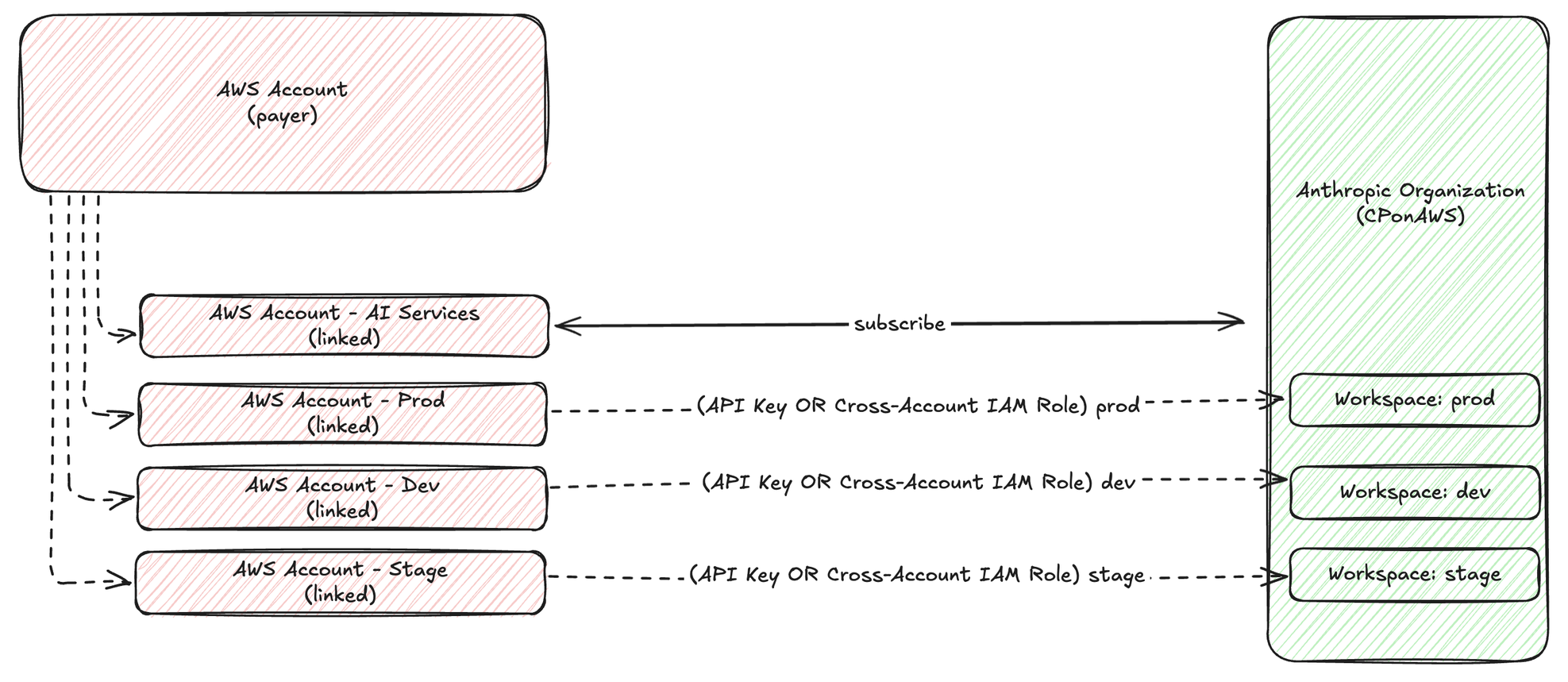
Figure 1: Multi-account topology for Claude Platform on AWS with a dedicated AI Services account
The preceding diagram shows the high-level account topology. The following diagram shows the specific implementation we will build, including AWS Identity and Access Management (IAM) roles, access paths, and workspace mappings:
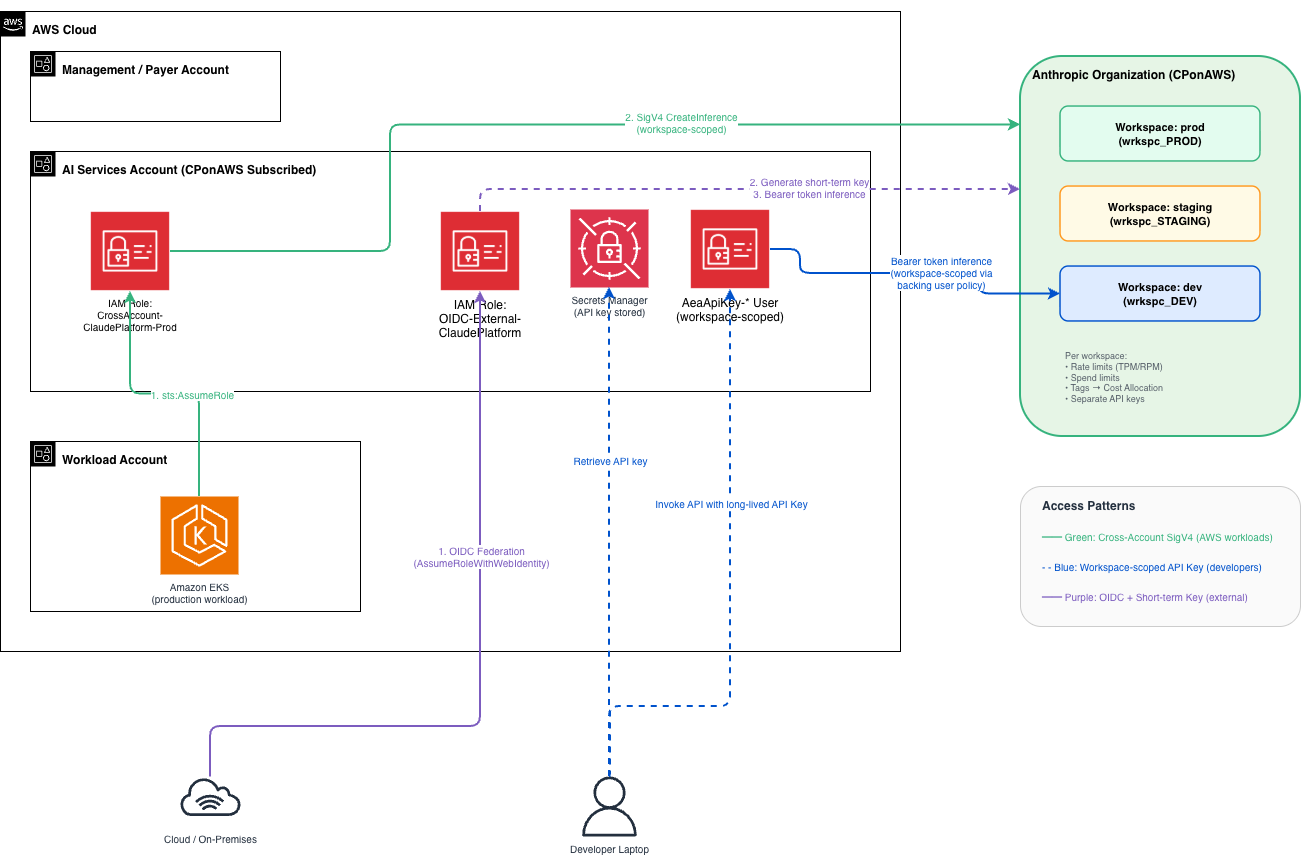
Figure 2: The three access patterns implemented in this guide
We will configure three access patterns:
- AWS workload accounts through cross-account SigV4: A pod hosted on Amazon Elastic Kubernetes Service (Amazon EKS) in a workload account assumes a role in the AI Services account. It then makes SigV4-signed inference calls. No API keys stored, no secrets to rotate.
- Developer laptops through a workspace-scoped API key: A long-lived API key locked to a development workspace. Developers use it locally with the standard Anthropic SDK.
- External workloads through OpenID Connect (OIDC) federation and short-term keys: A workload hosted outside AWS authenticates through OIDC, obtains temporary AWS credentials. It generates a short-lived token and makes inference calls with zero persistent credentials.
Prerequisites
Before starting, verify you have:
- An organization in AWS Organizations with:
- A payer (management) account.
- An AWS linked account for AI Services subscriptions (will host the CPonAWS subscription).
- An AWS linked account for hosting workload (for example, “Prod”).
- AWS Command Line Interface (AWS CLI) v2 installed and configured with named profiles for both accounts.
- Python 3.12+ with the following packages: anthropic[aws], boto3, token-generator-for-aws-external-anthropic.
Step-by-step guide
This walkthrough is divided into four parts. Each part configures one layer of the architecture: the CPonAWS subscription and workspace structure, cross-account SigV4 access for AWS workloads, workspace-scoped API keys for developers, and OIDC federation for external environments. Complete them in order. Each part builds on the resources created in the previous one.
Placeholder reference
Throughout this guide, replace these placeholders with your actual values:
| Placeholder | Description | Example |
YOUR_ORG_ID |
AWS Organizations ID | o-abc123def4 |
YOUR_REGION |
AWS Region where the workspace was created | us-east-1 |
AI_SERVICES_ACCOUNT_ID |
AWS account ID of the AI Services account | 123456789012 |
WORKLOAD_ACCOUNT_ID |
AWS account ID of the Workload account | 987654321098 |
WORKSPACE_PROD_ID |
Anthropic production workspace ARN | wrkspc_01abc... |
WORKSPACE_DEV_ID |
Anthropic development workspace ARN | wrkspc_02def... |
YOUR_OIDC_ISSUER |
OIDC identity provider URL | accounts.google.com |
YOUR_WORKLOAD_IDENTITY_FILTER |
Subject claim filter for OIDC trust | system:serviceaccount:ns:sa |
Part 1: Set up the AI Services account
Follow the Introducing Claude Platform on AWS guide to subscribe your AI Services account to CPonAWS. After you’re subscribed, create two workspaces to isolate production and development traffic:
- Access the AWS Management Console on the AI Services account, and navigate to Claude Platform on AWS.
- Navigate to Access, and sign in as Admin.
- In the Claude Console, choose the drop-down menu in the top left corner and choose Create Workspace. Enter the name production, and choose Create.
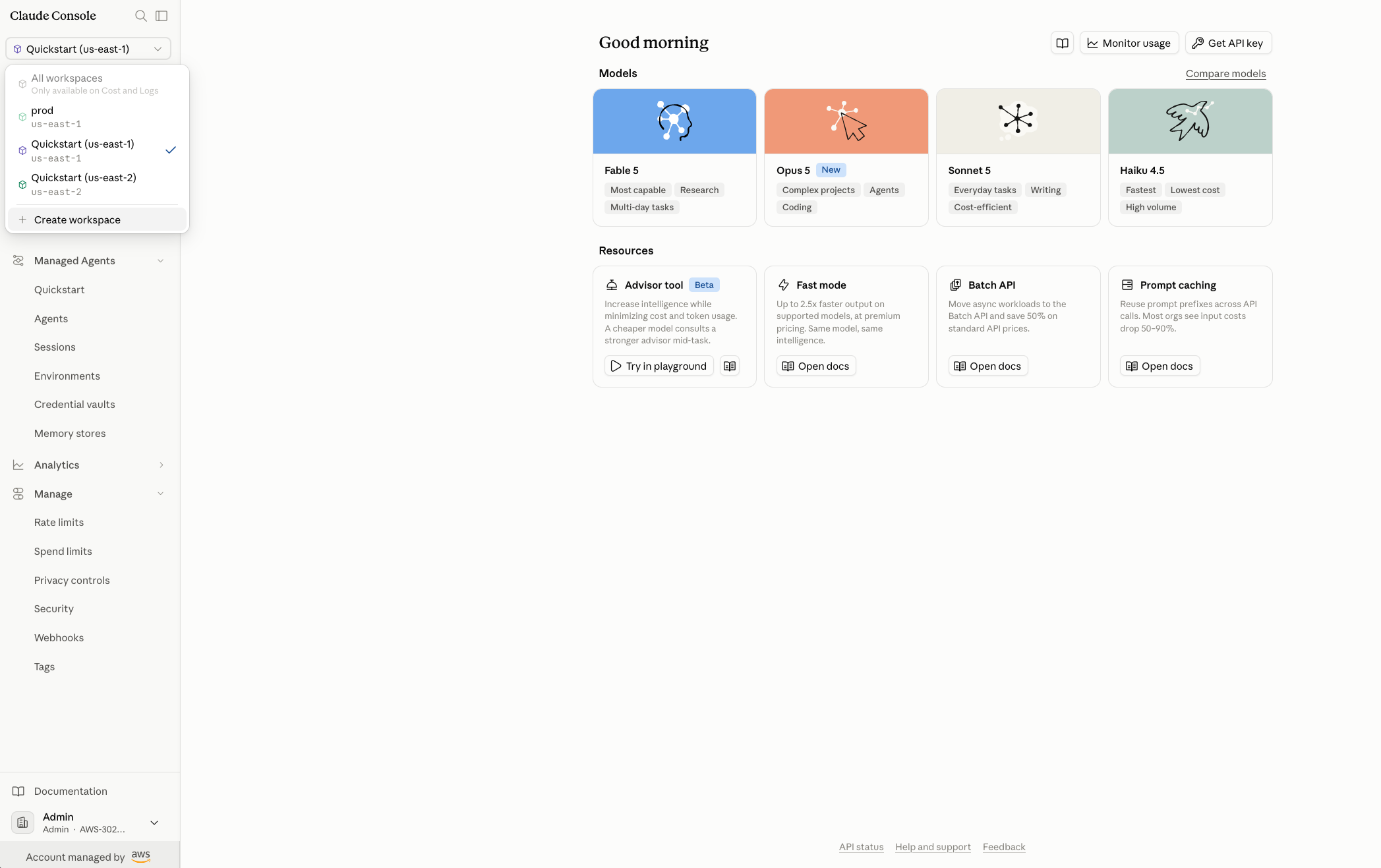
Figure 3: Claude Console dashboard showing how to create a workspace
- Note the workspace ARN (for example,
wrkspc_PROD). - Repeat to create a second workspace named development (for example,
wrkspc_DEV).
Tip: Record both workspace ARNs now. You will reference them in IAM policies and code throughout this guide. Workspaces are created in a specific AWS Region, and your API calls must target the matching Regional endpoint (for example, aws-external-anthropic.us-east-1.api.aws). Note that the workspace Region determines the API endpoint, not where inference runs. Inference geography is controlled separately through the workspace’s Security settings in the Claude Console. Current options are “US” and “Global routing”. For short-term keys, this is enforced at both generation and use: the token only works against the same Regional endpoint where it was generated. Long-lived API keys are not Region-locked. For supported Regions and available models, see Supported Regions and models in the Claude Platform on AWS User Guide.
Part 2: Cross-account SigV4 for AWS workloads
This section configures an EKS pod (or another workload) in the Workload account to make inference calls through SigV4 signing. The workload assumes a role in the AI Services account that grants access only to the production workspace.
2.1 Create the cross-account role (AI Services account)
First, create the trust policy file in the AI Services account. This allows a specific role in the Workload account to assume the cross-account role.
- Access the AWS Management Console in the AI Services account, and open AWS CloudShell.
- Save this file as
trust-policy.json.
- Create the role by running the following command.
2.2 Attach the permission policy (AI Services account)
- Save this file as
permission-policy.json.
- Attach the policy to the role:
Note: CreateInference is scoped to the WORKSPACE_PROD_ID workspace ARN. This role cannot access the development workspace or additional workspace in the account.
2.3 Grant AssumeRole (Workload account)
The EKS pod role in the Workload account needs permission to assume the cross-account role. First, create the policy.
- Access the AWS Management Console in the Workload account, and open AWS CloudShell.
- Save this file as
allow-assume-cponaws.json.
- Create and attach the policy.
2.4 Test (from the Workload account)
- Run the following Python script from a machine (or pod) with the
EKS-Pod-Rolecredentials.
Part 3: Workspace-scoped API key for developer access
Developers can use API keys to call Claude from their laptops without configuring cross-account role chains. In the following section, you will generate a key, scope it to the development workspace, and verify isolation.
3.1 Generate an API key (AI Services account)
- Sign in to the AI Services account on the AWS Management Console.
- Navigate to Claude Platform on AWS, then API keys.
- Choose Generate long-term key, select an API key expiration, and choose Generate.
- Copy the key value immediately (store it securely: you won’t see it again).
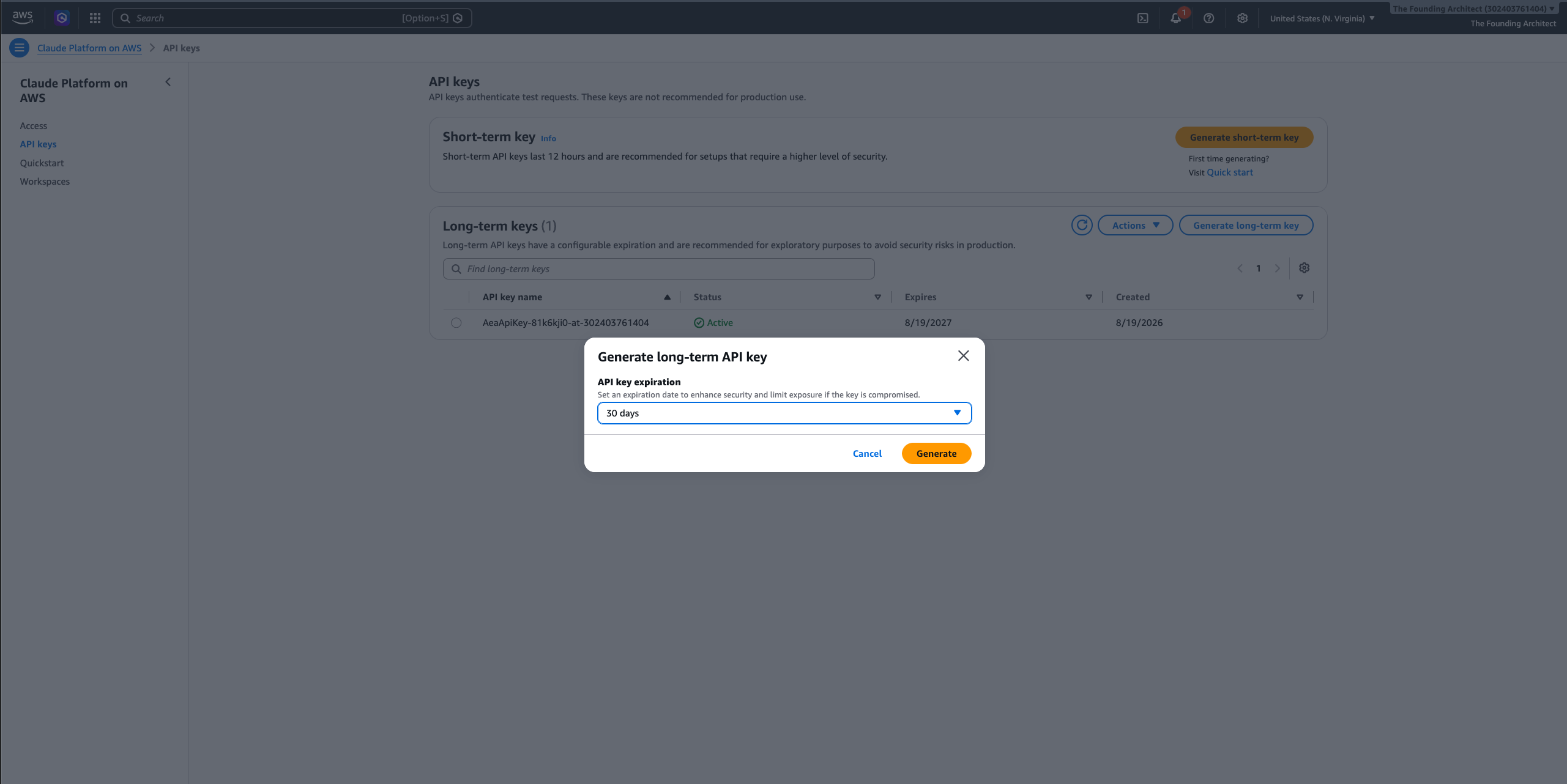
Figure 4: Generating a long-term API key from the Claude Console (API Keys page) with configurable expiration
3.2 Scope the key to the development workspace (AI Services account)
By default, the generated key’s backing IAM user (AeaApiKey-*) has the AnthropicLimitedAccess managed policy attached. This policy grants access to every workspace. To enforce workspace isolation:
- On the AWS Management Console (AI Services account), navigate to IAM, then Users.
- Search for users starting with
AeaApiKey-. - Find the most recently created user (the creation timestamp should match when you generated the key).
- Select the user, and then choose the Permissions tab.
- Select the
AnthropicLimitedAccesspolicy, and choose Remove to detach the managed policy. - Choose Add permissions, then Create inline policy.
- Switch to the JSON tab and paste the following.
- Name the policy
CPonAWS-DevWorkspace-Onlyand choose Create policy.
3.3 Distribute the key to the development team (Workload account or developer environment)
The admin distributes the scoped API key to the development team. Store it in the team’s preferred secret management solution. For AWS based teams, store it in AWS Secrets Manager within the workload or developer AWS account:
Note: The API key is self-authenticating. It works regardless of which AWS account (or non-AWS environment) it’s called from. Store it wherever your developers can retrieve it securely.
3.4 Test (from developer laptop)
- Run the following code from your laptop configured with the profile of the same account where the secret was created in the previous step.
Expected output: A response from Claude confirming the development workspace is accessible.
3.5 Verify workspace isolation (from developer laptop)
- Confirm the development key cannot access the production workspace.
Expected output: GOOD: Access denied as expected followed by a permission error. If the key successfully accesses the production workspace, revisit step 3.2 and confirm the managed policy was detached.
Part 4: OIDC federation for external workloads
For workloads running on Google Cloud Platform (GCP), Kubernetes clusters outside AWS, or CI/CD pipelines (GitHub Actions, GitLab CI), OIDC federation authenticates them without storing AWS credentials. The flow: the external identity provider issues a token, and AWS Security Token Service (STS) exchanges it for temporary credentials. Those credentials then generate a short-lived CPonAWS bearer token.
4.1 Create an IAM OIDC identity provider (AI Services account)
Configure an IAM OIDC identity provider in your AI Services account for your external workload’s issuer. For example, for GCP workloads follow the Access AWS using a Google Cloud Platform native workload identity guide for the complete setup.
4.2 Create a role for external workloads (AI Services account)
- Access the AWS Management Console in the AI Services account, and open AWS CloudShell.
- Save as
oidc-trust-policy.json.
- Create the role:
- Save the permission policy as
oidc-permission-policy.json.
- Attach the policy:
Important: CallWithBearerToken must be granted on Resource: "*". Scoping it to a workspace ARN causes all token generation calls to fail. CreateInference remains scoped to the workspace ARN for isolation: the generated token inherits the workspace restriction.
4.3 Generate and use a short-term token (from external environment)
- After the external workload has obtained AWS credentials through OIDC (see Access AWS using a Google Cloud Platform native workload identity for the full credential exchange flow):
Key point: The generated token expires after 1 hour (configurable, maximum 12 hours). After generation, the token is a standalone bearer credential: the external workload no longer needs AWS credentials to make inference calls. For services that run continuously (for example, a GCP Cloud Run container), implement token renewal by refreshing the token before expiry.
Part 5: Cleanup
To avoid ongoing charges if you are evaluating:
- Revoke API keys: On the AWS Management Console, navigate to Claude Platform on AWS, API keys. Delete any generated keys.
- Delete backing IAM users: Navigate to IAM > Users, search for
AeaApiKey-*, and delete any users created by the key generation process. - Delete IAM roles:
- Delete the OIDC provider:
- Delete secrets.
- Unsubscribe from CPonAWS: Navigate to AWS Marketplace, Your Subscriptions, and cancel the Claude Platform subscription.
What’s next
With cross-account SigV4, workspace-scoped API keys, and OIDC federation configured, your CPonAWS deployment supports AWS workloads, developer access, and external environments with workspace-level isolation. To harden for production:
- Monitoring: Configure AWS CloudTrail data events for the
aws-external-anthropicservice to get per-call auditability with principal attribution. - Cost allocation: Tag each workspace (for example,
team:payments,environment:prod) and activate those tags in the Billing Console under Cost Allocation Tags. Once active (allow 24–48 hours), you can filter AWS Cost Explorer by workspace to attribute Claude spend to specific projects, teams, or environments.
To get started with Claude Platform on AWS, visit the Claude Platform on AWS service page, or go directly to the AWS Management Console. For full documentation, see the Claude Platform on AWS User Guide and the Anthropic documentation.
About the authors