
















Capacity-aware inference: Automatic instance fallback for SageMaker AI endpoints
Today, Amazon SageMaker AI introduces capacity aware instance pool for new and existing inference endpoints. You define a prioritized list of instance types, and SageMaker AI automatically works through your list whenever capacity is constrained at creation, during scale-out, and during scale-in. Your endpoint provisions on available AI Infrastructure without manual intervention. This capability is available for Single Model Endpoints, Inference Component-based endpoints, and Asynchronous Inference endpoints.
As organizations scale generative AI workloads in production, securing reliable GPU compute has become one of the most persistent operational challenges. Large language models (LLMs) and multimodal architectures demand specific instance types and when that capacity isn’t available, endpoints fail before they serve a single request.
Building a real-time inference endpoint on Amazon SageMaker AI has meant committing to a single instance type at creation time. When that type had insufficient capacity, the endpoint failed to reach a running state. You updated your configuration, selected a different instance type, and retried repeating the cycle until a provisioning attempt succeeded.
Today, Amazon SageMaker AI introduces capacity aware instance pool for new and existing inference endpoints. You define a prioritized list of instance types, and SageMaker AI automatically works through your list whenever capacity is constrained at creation, during scale-out, and during scale-in. Your endpoint provisions on available AI Infrastructure without manual intervention. This capability is available for Single Model Endpoints, Inference Component-based endpoints, and Asynchronous Inference endpoints.
This post walks through how instance pools work and how to get started, whether you’re creating a new endpoint or migrating an existing one.
The problem
When you deploy a model to a SageMaker AI inference endpoint whether real-time or asynchronous, you specify a single instance type. If that type doesn’t have available capacity, the endpoint fails to create. This limitation appears at every stage of the endpoint lifecycle.
Endpoint creation fails on capacity. When your preferred instance type isn’t available, SageMaker AI returns an Insufficient Capacity error. Getting to a running endpoint requires manually iterating through alternatives, with each attempt consuming significant time before you know the outcome.
Autoscaling can’t grow the fleet. When a scale-out event triggers and your instance type has insufficient capacity, the autoscaler retries the same type indefinitely. Traffic continues to increase while your endpoint stays at its current size.
Scale-down has no priority awareness. With a single instance type, there’s no concept of preferred compared to fallback hardware. Every instance is a candidate for removal without distinction.
Observability is aggregated, not actionable. Amazon CloudWatch metrics roll up at the endpoint level. When investigating a latency or capacity issue, the metrics indicate that something is wrong but not which instance type is the cause.
How it works: Priority-based instance pools
You define a ranked list of instance types called instance pools in your endpoint configuration. SageMaker AI works through that list automatically whenever capacity is constrained.
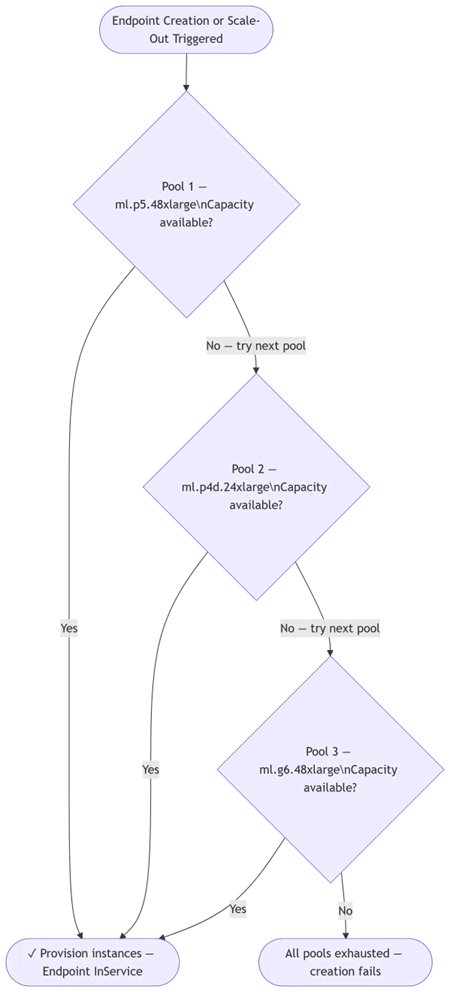
Your endpoints come up. SageMaker AI tries your first-choice instance type. If capacity isn’t available, it immediately tries your second choice, then your third. There’s no manual retry required. Your endpoint reaches InService on the first available AI infrastructure in minutes.
Your endpoints stay up. When auto scaling triggers and your preferred instance type is constrained, SageMaker AI scales out on the next available type in your priority list, so traffic keeps flowing.
Your fleet trends toward preferred hardware. During scale-in, SageMaker AI removes your lowest-priority (fallback) instances first. On subsequent scale-out events, it again tries your highest-priority type first. As your preferred hardware becomes available, your fleet naturally shifts back toward it over time and no manual intervention is required.
You see everything. Every existing CloudWatch metric now includes an InstanceType dimension, so you can track latency, throughput, GPU utilization, and instance count per instance type within a single endpoint.
To learn more, see the Amazon SageMaker AI documentation and explore the sample notebook on GitHub.
The right model for each instance type
Fallback instance types often differ in GPU memory, compute capability, and architecture. A model optimized for a high-memory multi-GPU instance won’t necessarily run on a smaller single-GPU fallback. There are two ways to match each instance type in your pool list to a correctly configured model.
Option 1: Bring your own optimized models
If you already know your instance type targets, prepare model artifacts for each. For your primary high-end instance, you might use tensor parallelism across multiple GPUs. For a mid-tier fallback, you might apply speculative decoding to accelerate inference. For your lowest-priority fallback, you might use INT4 quantization to fit within a smaller memory budget.
Create a separate SageMaker AI model for each configuration and reference it using ModelNameOverride in each InstancePools entry (for Single Model Endpoints) or in per-instance-type Specifications (for InferenceComponent-based endpoints). When SageMaker AI falls back to a lower-priority pool, it deploys the model that you prepared for that hardware.
Option 2: Use SageMaker AI inference recommendations
If you’d rather not optimize each hardware target manually, SageMaker AI inference recommendations can generate hardware-specific configurations for you. Provide your base model and SageMaker AI produces optimized configurations across your target instance types using techniques like speculative decoding and quantization.
The recommendation job returns one result per target instance type. Each result includes a ModelPackageArn and an InferenceSpecificationName in the AIRecommendationModelDetails response, identifying the configuration for that specific hardware. You create one SageMaker AI model per result using both fields, then reference each using ModelNameOverride in its corresponding pool entry—the same pattern as Option 1, with the service handling the optimization work.
Auto scaling on a mixed fleet
Auto scaling follows the same priority logic that you define at creation time. Scale-out tries your highest-priority pool first, falling back to the next pool if capacity is unavailable. Scale-in removes your lowest-priority instances first, preserving your preferred hardware as the fleet contracts.
Building a weighted scaling metric
Because your fleet contains instance types with different throughput capacities, default aggregated metrics can misrepresent actual usage. Consider a p5 instance handling 18 concurrent requests alongside a g6 handling 7 averaging those raw numbers to 12.5 doesn’t accurately reflect the load on either type.
You can now use CloudWatch metric math to build a weighted metric based on per-type utilization ratios. Each term divides a type’s observed concurrency by its maximum capacity, producing a value between 0.0–1.0. Averaging those ratios gives a fleet-level usage signal on the same 0.0–1.0 scale as TargetValue. Setting TargetValue to 0.7 means: scale out when the weighted average exceeds 70 percent of capacity across all instance types in the fleet.
In this expression, 20 and 8 are the maximum concurrency values measured for each instance type. A p5 handles up to 20 requests and a g6 handles up to 8 in this example. Replace these values with the maximums you measure for your model during load testing. The following table shows how the metric responds at different traffic levels:
| Traffic level | p5 requests | g6 requests | Weighted utilization | Action |
| Low | 5 | 2 | (0.25 + 0.25) / 2 = 0.25 | Scale in |
| Moderate | 12 | 5 | (0.60 + 0.63) / 2 = 0.61 | Hold |
| High | 18 | 7 | (0.90 + 0.88) / 2 = 0.89 | Scale out |
| At target | 14 | 6 | (0.70 + 0.75) / 2 = 0.73 | Near target — hold |
Note: For workloads where all instance types have similar throughput capacity, your existing scaling policy works without modification. The weighted usage metric is most valuable when pool members differ significantly in GPU capacity.
Monitoring your fleet
All existing CloudWatch metrics now include a new InstanceType dimension: ModelLatency, ConcurrentRequestsPerModel, GPUUtilization, InstanceCount, and InvocationsPerInstance—broken down by hardware type within a single endpoint. You can build dashboards and alarms that track each instance type independently.
DescribeEndpoint returns the current instance count per pool, so you always know your fleet composition:
Traffic routing
For endpoints with instance pools, we recommend enabling Least Outstanding Requests (LOR) routing by setting RoutingConfig in your ProductionVariant. LOR routes each incoming request to the instance with the fewest in-flight requests per model copy. Because higher-capacity instances process requests faster, they drain their queues more quickly and maintain lower in-flight counts at steady state. This means that they naturally receive proportionally more traffic without any manual weight configuration:
Without this setting, the endpoint defaults to RANDOM routing, which distributes requests evenly regardless of instance load. This is less optimal when pool members differ significantly in throughput capacity. For full details, see RoutingConfig in the ProductionVariant API reference.
Updates and rollbacks
Both blue/green and rolling deployments are supported.
Blue/green deployments provision a complete new (green) fleet using the same priority-based fallback logic before shifting traffic. If health checks pass, traffic cuts over. If they fail, automatic rollback preserves your blue fleet and your endpoint stays InService throughout.
Rolling deployments update your fleet in configurable batches (5–50 percent of instances at a time), requiring less additional capacity than a full blue/green fleet—particularly valuable for large models or GPU instance types in high demand. SageMaker AI applies the priority-based fallback logic when provisioning each new batch. If a CloudWatch alarm trips during a baking period, traffic rolls back automatically. See Use rolling deployments for configuration details.
Prerequisites
Before you get started, make sure that you have:
- An AWS account with
sagemaker:CreateEndpointConfig,sagemaker:CreateEndpoint, andsagemaker:UpdateEndpointIAM permissions - At least one SageMaker model with artifacts in Amazon S3
- Boto3 version 1.43.1 or later (for
InstancePoolssupport in the Python SDK) - (Optional) Separate optimized model artifacts per target instance type, or a ModelPackage from SageMaker AI inference recommendations
Instance pool support for SageMaker AI inference endpoints is available in all commercial AWS Regions. You can get started through the AWS Management Console, AWS Command Line Interface (AWS CLI), or AWS SDK.
Workflow to configure endpoints with instance pool
There are two ways you can configure the instance pool: for new Amazon SageMaker AI endpoint or with your existing Amazon SageMaker AI endpoint.
- If you’re creating a new endpoint, below diagram explains the workflow:
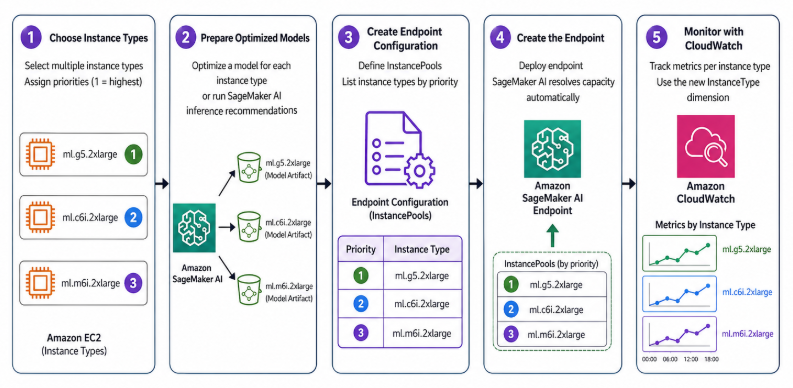
- Choose your instance types and assign priorities (1 is highest).
- Prepare an optimized model for each instance type, or run SageMaker AI inference recommendations to generate them.
- Create an endpoint configuration with
InstancePoolslisting your priorities. - Create the endpoint. SageMaker AI handles capacity resolution automatically.
- Set up per-type CloudWatch monitoring using the new
InstanceTypedimension.
- If you’re migrating an existing endpoint below diagram explains the workflow:
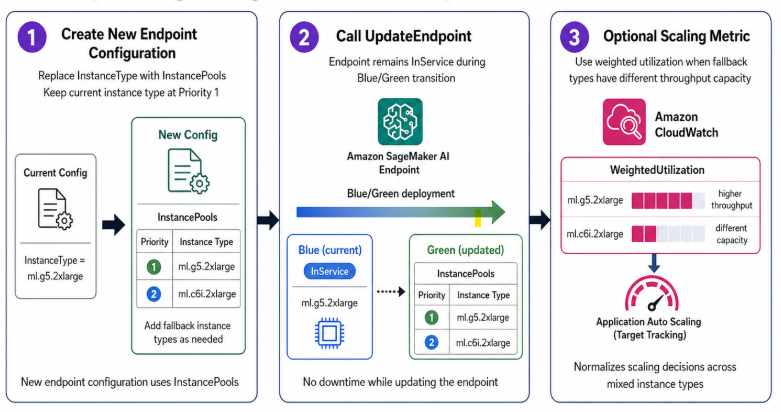
- Create a new endpoint configuration: replace
InstanceTypewithInstancePools, keeping your current instance type atPriority: 1. - Call
UpdateEndpoint, your endpoint staysInServiceduring the blue/green transition. - Optionally add a weighted utilization scaling metric if your fallback instance types differ significantly in throughput capacity.
- Create a new endpoint configuration: replace
Setting up
Adopting instance pools requires one field change to your endpoint configuration: replace the single InstanceType field in your ProductionVariant with an InstancePools list. Your model, scaling policies, and monitoring dashboards continue to work without modification.
Migrating an existing endpoint
Before: single instance type:
After: priority-ordered instance pools:
Your endpoint stays InService during the blue/green transition.
Note: VariantInstanceProvisionTimeoutInSeconds is a new field introduced with instance pool support. It sets the total window for procuring instances from a pool: SageMaker AI continues retrying on Insufficient Capacity errors within this window and moves to the next pool after the timeout expires. The valid range is 300–3600 seconds. 1200 seconds is a reasonable starting value for large GPU instance types. This timer covers instance procurement only, model download and container startup time are governed separately by the existing ModelDataDownloadTimeoutInSeconds and ContainerStartupHealthCheckTimeoutInSeconds fields. To deploy a different optimized model per instance type, add ModelNameOverride to any pool entry. You can see the model configuration options in the previous section.
InferenceComponent-based endpoints
Asynchronous inference endpoints
Instance pools work the same way for Asynchronous Inference endpoints. Add an AsyncInferenceConfig block to your CreateEndpointConfig call alongside your InstancePools definition—the priority-based provisioning and fallback logic applies identically. This is particularly useful for asynchronous workloads that scale down to zero instances: when the endpoint scales back up to process queued requests, SageMaker AI provisions using your highest-priority available pool first, giving you resilient cold-start behavior without manual intervention.
Conclusion
Amazon SageMaker AI Instance Pools let you define a prioritized list of instance types for your inference endpoints, and SageMaker AI automatically manages capacity based on that order.
During endpoint creation, scale-out, and scale-in, SageMaker AI works through your preferred instance types so you do not have to manually retry deployments when your first-choice hardware is unavailable. Getting started is simple: replace InstanceTypewith InstancePoolsin your endpoint configuration and call UpdateEndpoint. Your existing models, autoscaling policies, and monitoring dashboards continue to work without major changes.
With per-instance-type CloudWatch metrics and detailed pool counts from DescribeEndpoint, you also get a clear, real-time view of which instance types are powering your fleet. Whether you are optimizing cost, handling GPU capacity constraints, or building resilient asynchronous pipelines that can cold start from zero, Instance Pools give you the flexibility and automation to keep ML inference running smoothly with less operational overhead.
This capability is available today at no additional cost. You incur charges for the actual instance types provisioned at the same rates as a standard single-type endpoint. To learn more, see the Amazon SageMaker AI documentation and explore the sample notebook on GitHub.
About the authors